The Filename modal opens when you click the Filename column on any row. It’s the most consequential editor in the plugin: saving here doesn’t just update a database field — it physically renames the file on disk and creates a 301 redirect from the old URL to the new one.
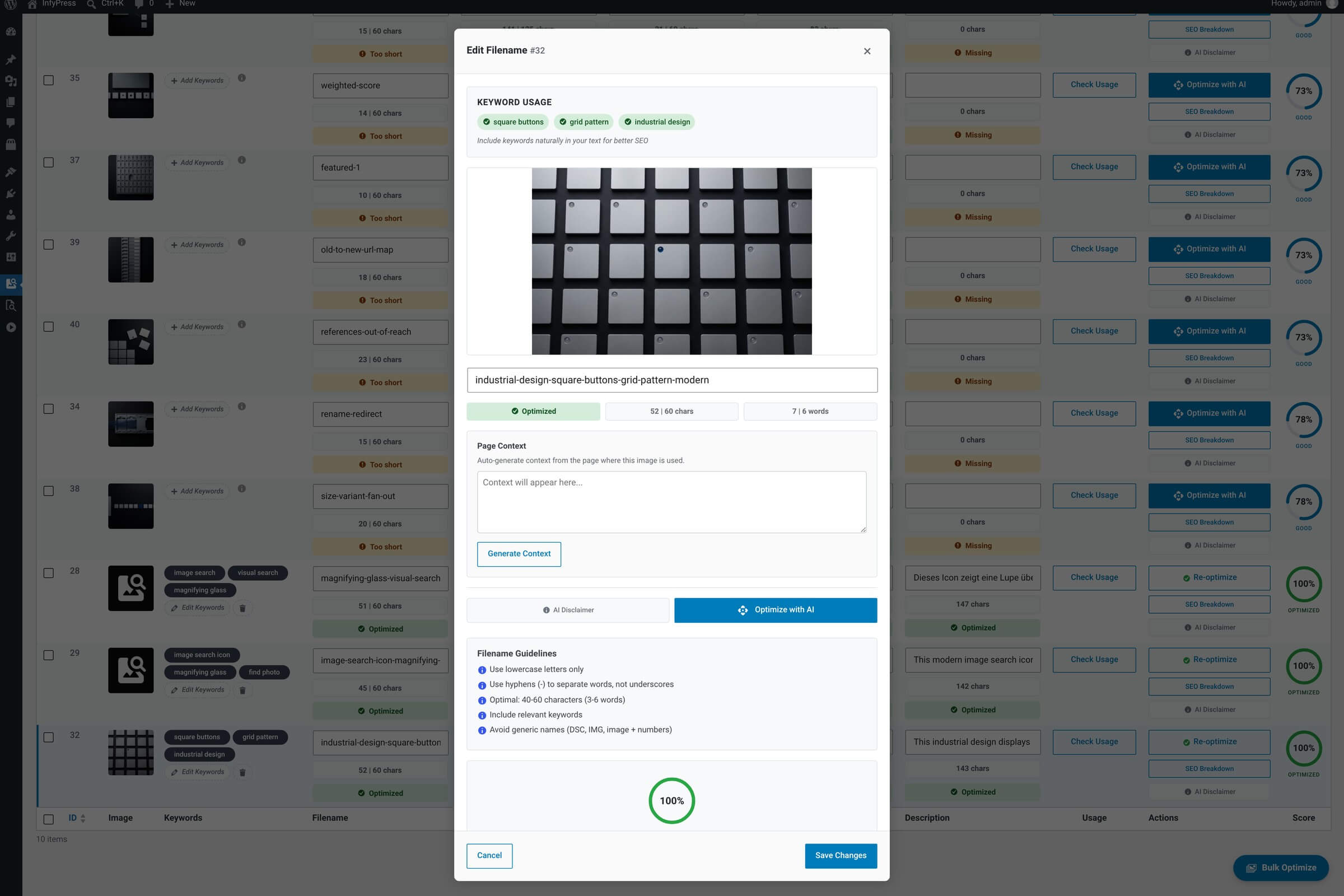
What it shows
Modal contents
| Feature | What it does |
|---|---|
| Image preview + ID badge Context. | Full-resolution preview so you can see the image you’re renaming. Attachment ID shown as a small badge for reference. |
| Filename input Auto-slugify on input. | Type your new filename. On every keystroke the field turns runs of whitespace into a single hyphen, underscores into hyphens, uppercase into lowercase, and collapses repeated hyphens. Leading and trailing hyphens are trimmed at save, not while you type. |
| Character and word counters Next to the status badge. | Live counts, each shown against its upper limit — 60 characters and 6 words by default. They are the raw numbers; the badge beside them carries the verdict. |
| Status badge Tolerance-aware verdict. | Green Optimized while both counts sit in their range or in the tolerance band around it. Inside the band the badge carries a tooltip: Slightly outside the target range — still fine. Beyond the band it becomes a yellow Too short or Too long warning. |
| Four metric circles Live scoring. | Keywords, Characters, Words and Format. Keywords reads 0, 50 or 100% for none, one, or two and more of the saved keywords. Characters and Words show 100% anywhere inside the range or its tolerance band, red below the lower limit and yellow above the upper one. Format is binary and names the offending characters — uppercase, underscores, spaces. |
| Overall SEO score Big circle. | The filename’s own score, recalculated on every keystroke and split roughly in thirds between characters, words and format. Shown as a percentage of the 15 points filename quality is worth by default, with the earned and total points below it. |
| Generic-name detection Status badge. | A filename matching a camera pattern such as IMG_2034, DSC1234 or DCIM_0001 gets a yellow Generic badge and earns none of the filename points. It is the cue that catches a Save on a name you never edited. |
| Optimize with AI Single-field AI suggestion. | Asks the AI for a new filename suggestion for just this image. The proposal lands in the input — you can still edit it before saving. |
| Save Changes / Cancel Persist or discard. | Save renames the file on disk and triggers the 301 redirect flow. Cancel closes without changing anything. |
Just outside the range still counts as green
Both length circles and the badge read the tolerance band configured for filenames — ±1 word and ±15% of each character limit by default, so the 40–60 character target accepts 34–69 and the 3–6 word target accepts 2–7. Inside the band the field keeps its full length credit in the live score. The band is per field and editable on the SEO Scoring System page.
What happens when you Save
The file is renamed on disk
WordPress’s standard attachment rename happens — the file in wp-content/uploads/ is renamed, and the attachment record updated to point at the new path.
A 301 redirect is registered
The old URL is added to the plugin’s redirects manager so search engines, bookmarks and any hard-coded links keep working. The redirect lives indefinitely unless you remove it manually.
Page-builder content is updated
References to this image are rewritten in the content of six builders — Gutenberg, Elementor, WPBakery, Visual Composer, Uncode and Divi. Gutenberg is always handled; the other five adapters load only when that builder is active on the site. You don’t need to edit any post by hand.
The row updates inline
The row’s Filename column shows the new value, the SEO score recalculates, and the row’s badges update. No table refresh needed.
Theme code and external caches don’t auto-update
The rename and redirect flow covers WordPress content and the six supported page builders. Hand-written theme code that hard-codes image URLs, third-party caches (CDN, server-side caches) and external integrations are not touched. Use the Image Usage modal on the same image before renaming to see exactly where it’s referenced.
What this modal doesn’t do
To avoid surprises, a few things this modal explicitly doesn’t do:
Out of scope
| Feature | Where to look instead |
|---|---|
| Preview the new URL The modal doesn’t render “your image will be at /wp-content/uploads/…/new-name.jpg”. | After saving, the row’s filename column shows the new name; the WordPress media library shows the new URL. The redirects manager logs the rename. |
| Check whether the filename is taken No collision check happens before save. | WordPress’s built-in attachment rename adds a numeric suffix automatically (e.g. -2.jpg) if the chosen name already exists on disk. The saved filename in the row will reflect the actual on-disk name. |
| Strip every invalid character while you type Only case, whitespace, underscores and repeated hyphens are corrected live. | Accents, punctuation and other symbols stay in the field, and the badge switches to Invalid format until you remove them. A name that comes back from Optimize with AI is reduced to lowercase letters, digits and hyphens before it reaches the input. |
| List where the image is used Use the Image Usage modal for that. | Open the Image Usage modal from the Usage column on the same row, or refresh it after rename to confirm references are updated. |