The Keywords modal opens when you click the Keywords column for any image. It’s where you maintain the three SEO keywords the plugin uses to score and optimize each image. The same modal handles manual editing and AI-generated suggestions.
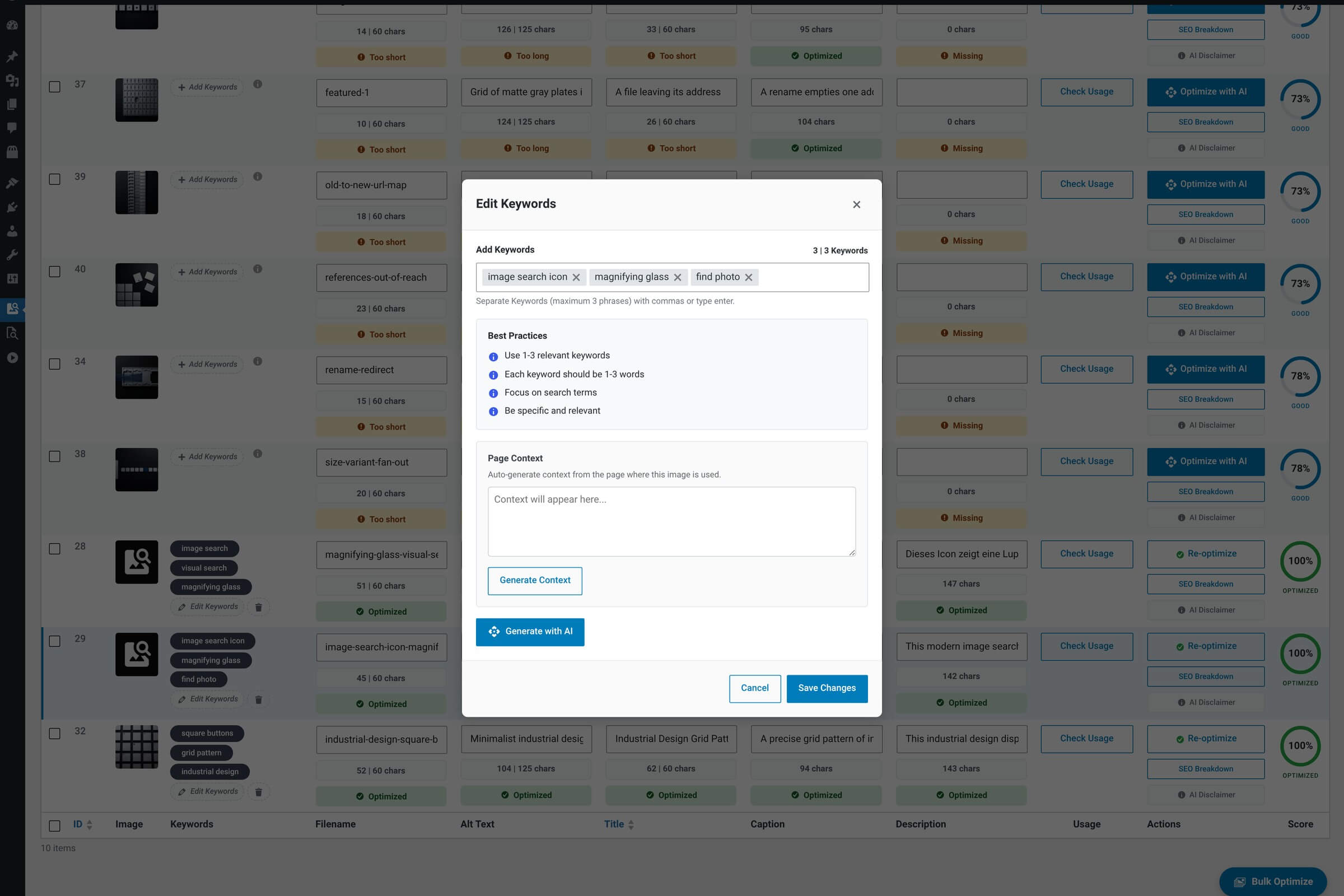
What it shows
Modal contents
| Feature | What it does |
|---|---|
| Token field The keyword input. | Type a keyword and press Enter to add it as a chip. Click the X on any chip to remove it. The field auto-focuses when the modal opens, so you can start typing immediately. |
| Counter badge Live count. | Shows “N | 3 Keywords” — how many you have versus the maximum. Three is the cap. |
| Generate with AI button One-click suggestions. | Calls the AI to propose three keywords for this image. The new set replaces whatever’s already there — it doesn’t append. |
| Best Practices list Inline guidance. | Four short tips on what makes a good image keyword — specific over generic, two-word phrases work well, etc. |
| Save Changes Persist. | Writes the keyword list to the database, updates the row’s Keywords column, and closes the modal. The SEO score recalculates automatically. |
| Cancel Discard. | Closes the modal without saving. Any edits you made in the token field are lost. |
Rules and limits
Keyword constraints
| Feature | Why |
|---|---|
| Maximum: 3 keywords Hard cap. | Three is the sweet spot for image SEO — enough to cover topic, type and context, not so many that the AI dilutes them. The token field stops accepting input once you hit three. |
| Minimum: 3 characters per keyword Per token. | Single-character or two-letter keywords are usually noise. The field rejects keywords shorter than three characters. |
Generating keywords with AI
Clicking Generate with AI sends the image to your configured AI model and asks for three keywords. The response replaces the existing list entirely — this is not an additive operation. If you have manually-curated keywords you want to keep, edit instead of regenerating.
One call, three keywords
A keyword generation counts as one AI call against your hourly limit (100/hour by default) and against your provider’s quota. It uses your selected model — including the Prompt Add-on if you have one set.
Clearing all keywords
To remove all keywords at once — for example, when the image is repurposed and the existing tags no longer fit — use the Clear Keywords action. It opens a confirmation dialog before wiping the list.
Modal: Clear Keywords
The confirmation dialog that fires when you ask to clear all keywords for an image.