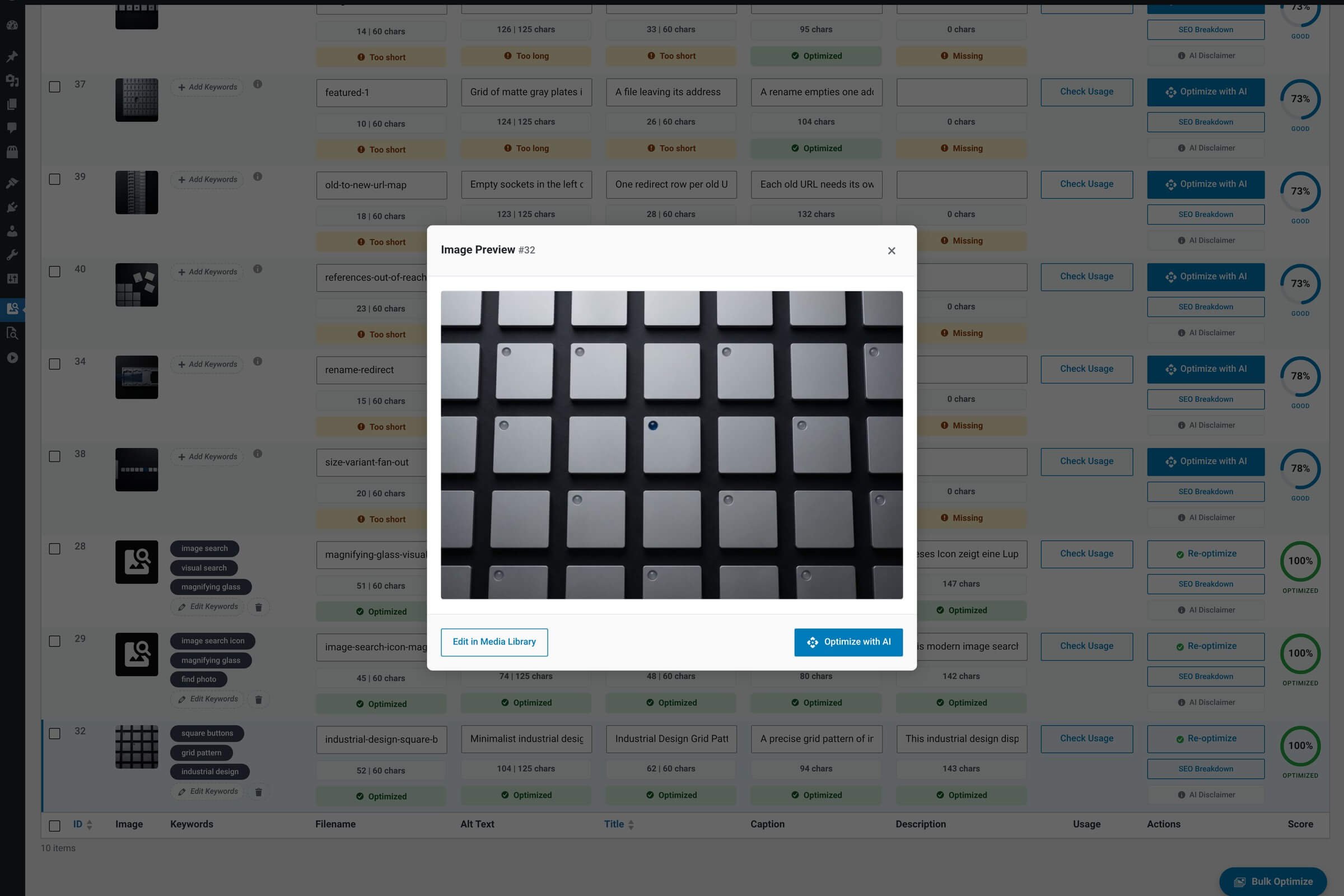
The Image Preview modal opens when you click any thumbnail in the Image column of the image table. It’s a quick way to see what an image actually looks like before deciding to optimize, rename or edit it — without leaving the dashboard.
zoom_in
What it shows
Preview modal contents
| Feature | What it does |
|---|---|
| Full-size image Main view. | The plugin loads the highest-resolution version of the image WordPress has stored. If for any reason that lookup fails, it falls back to the table thumbnail so you always see something. |
| Image ID badge Reference. | The WordPress attachment post ID, displayed as a small badge — useful if you’re cross-referencing with another tool or a database query. |
| Edit in Media Library Quick action. | Opens the WordPress Media Library edit screen for this attachment in a new tab. Good for editing the standard WP fields (caption, description, etc.) outside the plugin’s workflow. |
| Optimize with AI Quick action. | Closes the preview and triggers the row’s optimization flow — same as clicking Optimize with AI on the row itself. |
info
Read-only by design
The preview modal is for looking, not editing. To change a field (alt text, filename, title, etc.), use the dedicated modal for that column — click the relevant cell in the row rather than the thumbnail.
Closing the modal
Close the modal with the X in the corner, by pressing Esc, or by clicking outside it on the dimmed background. Nothing is persisted by closing — the preview doesn’t save state.