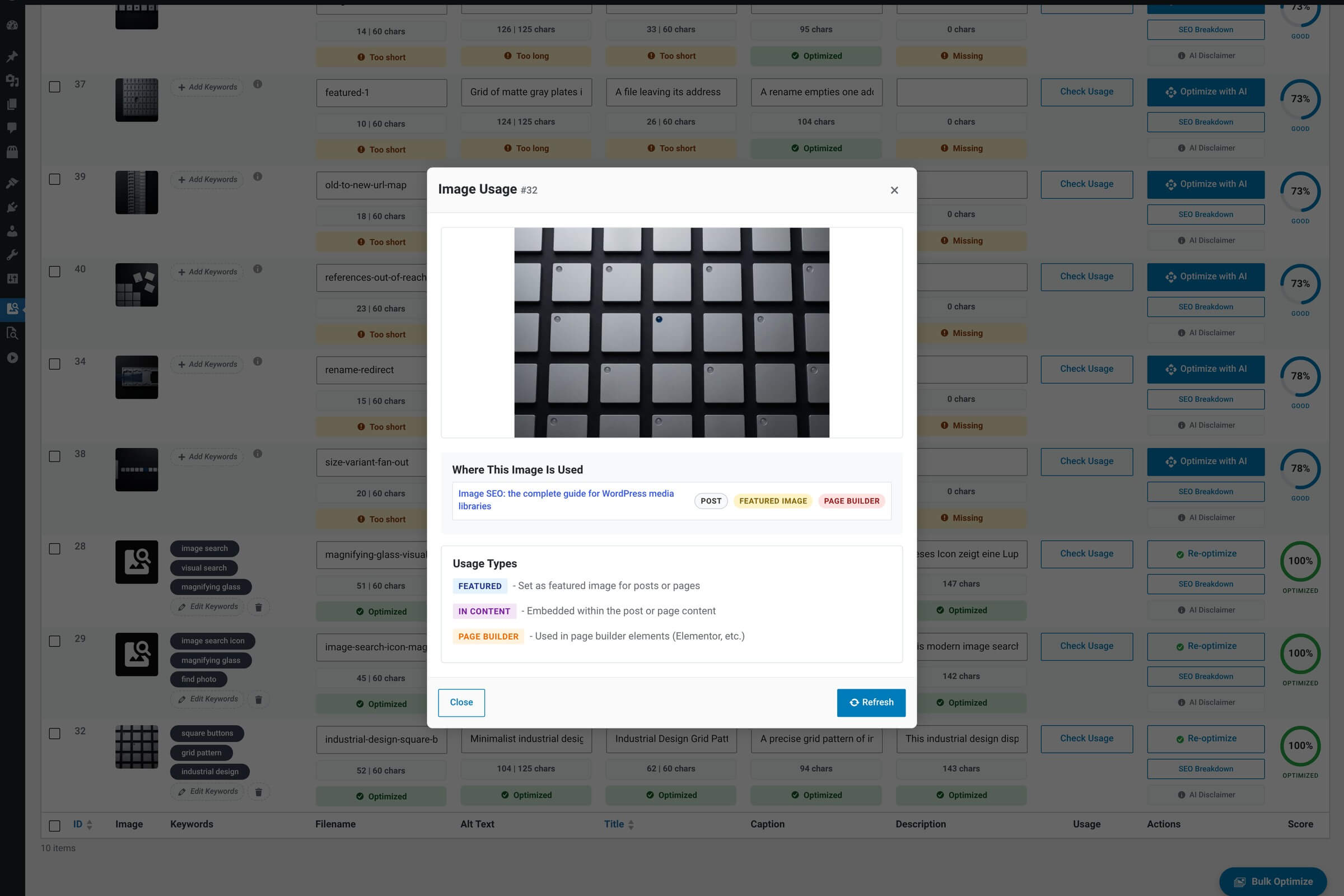
The Image Usage modal opens when you click the Usage column on any row. It’s the page to check before you rename or delete an image — it shows every place on your site that references this attachment, classified by how it’s being used.
zoom_in
What it shows
Modal contents
| Feature | What it does |
|---|---|
| Image preview + ID badge Context. | Standard preview so you can confirm you’re looking at the right image. |
| Usage list The main content. | Every post, page or other content type that references this image, each item linking to the source so you can click through and inspect. A row can carry more than one badge, and less common ones exist: In Shortcode, Attached (linked only as the attachment’s parent) and Referenced (found, but nothing more specific matched). |
| Usage Types legend Three badges. | Featured (set as the featured image for a post or page), In Content (embedded in the post or page content), Page Builder (used in page builder elements). The rows above the legend are more specific than the legend itself — they name the builder that was detected. |
| Refresh button Live recheck. | Re-scans the site for references without closing the modal. Useful right after you’ve renamed an image — confirms the new references stuck. |
| Close Dismiss. | Read-only modal — closing doesn’t save or change anything. |
The three usage types, explained
Type badges
| Feature | What it means |
|---|---|
| Featured Image WordPress’s post thumbnail. | The post or page uses this image as its featured thumbnail (set in the editor sidebar). Most-visible usage type — shows in archives, search results and many themes’ headers. |
| In Content Inline in the post body. | The image appears inside the post or page content as an inline image — the standard WP image block or classic-editor img tag. Visible to readers in the body of the article. |
| Page Builder Inside a page-builder block. | The image is referenced inside builder content rather than plain post markup. Where the builder is identifiable the row says so — Gutenberg, Elementor, WPBakery, Uncode or Divi Builder — and falls back to a plain Page Builder badge when it cannot tell which one wrote the reference. These references are tracked separately because builders store them in their own fields, and they need explicit rewrites when you rename a file. The rename flow covers six adapters, one more than this list of labels: Visual Composer content is rewritten too. |
info
Why check before renaming
When you rename a file via the Filename modal, the plugin updates every reference shown here automatically — and the old URL is 301-redirected. But if you have theme code with hard-coded URLs, third-party caches, or external embeds, those won’t show up in this list and won’t get updated. The usage modal is the easiest pre-flight check.