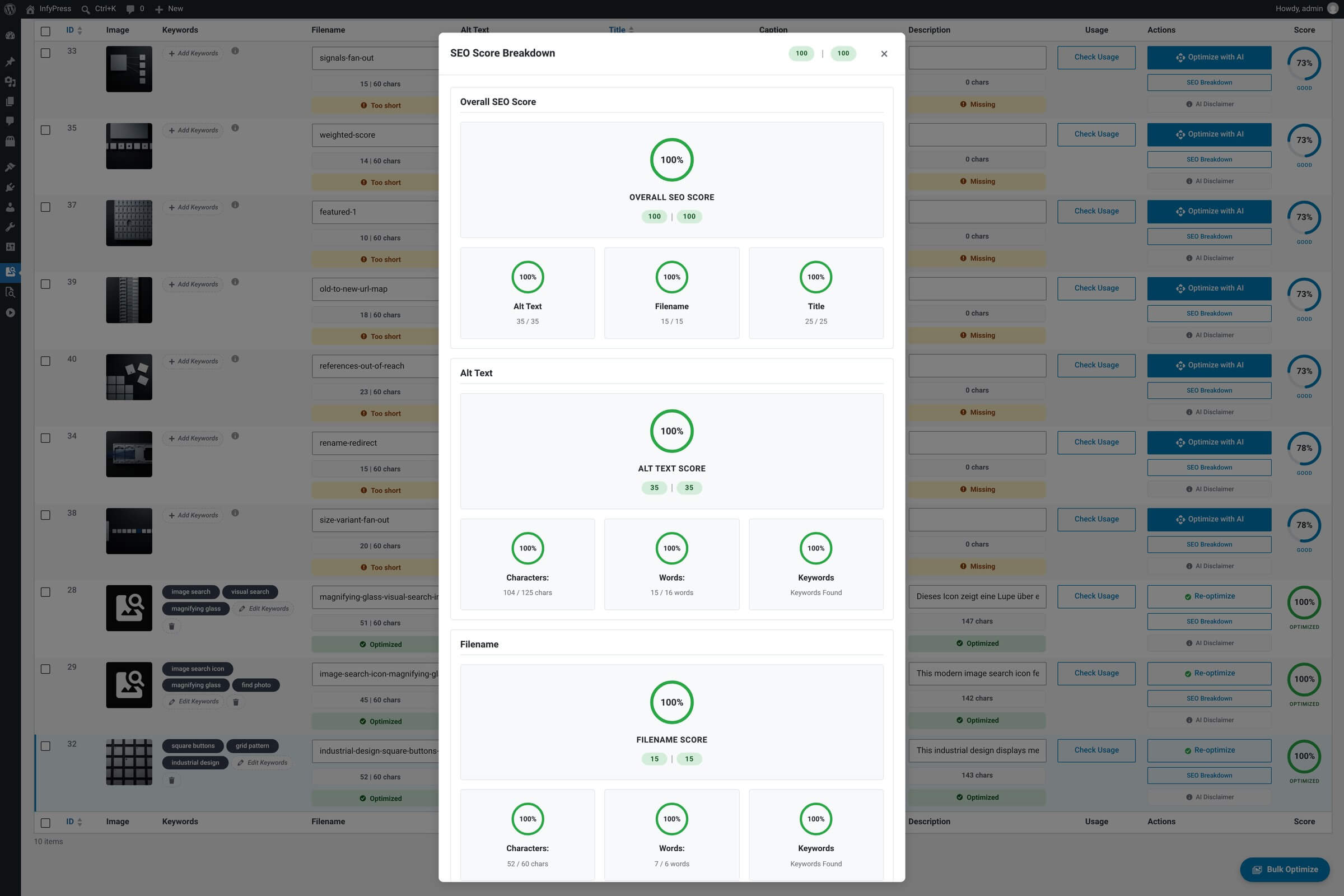
The SEO Breakdown modal opens when you click the Score column on any row. The score in the table is a single number out of 100; this modal shows where it came from — an overall circle followed by five field sections, each with the points earned against the points available.
What it shows
Modal sections
| Feature | What it shows |
|---|---|
| Overall score Top of the modal. | Circular progress indicator with the 0–100 score, and the points earned against the points available in the header badges. |
| Three header summary cards Below the overall score. | Quick at-a-glance scores for Alt Text, Filename and Title — the three fields you most commonly want to fix in isolation. |
| Five field sections Detailed breakdown. | Alt Text, Filename, Title, Keyword Usage and Uniqueness — each with its own score circle and, for the first four, the metric circles that fed it. |
| Optimize with AI button Bottom action. | Closes the modal and triggers the row’s optimization flow — same as clicking Optimize with AI on the row directly. Only shown when the score is below 100. |
| To reach 100% table Fallback layout only. | The modal normally loads its layout from the server. If that request fails it renders a built-in fallback instead, which lists every criterion still short of full points, the points each one would add, and a Perfect SEO Score panel when nothing is missing. |
How the five sections map to the seven weights
The score is built from seven weighted components, but the modal shows five sections. Alt text and title each carry two components — presence and quality — and the modal adds them into one section, so the two counts describe the same math.
Sections, components and default points
| Feature | What the section shows | Default points Recommended |
|---|---|---|
| Alt Text Components: alt presence + alt quality. | Presence pays the moment the field is not empty. Quality is decided by the Characters and Words circles: in range, or inside the tolerance band around it, pays in full — outside pays half. The Keywords circle is reporting only; those points sit under Keyword Usage. Editable in the Alt Text modal. | 20 + 15 |
| Filename Component: filename quality. | The points go to any name that is not a camera default such as IMG_2034 or DSC1234. The three circles — Characters, Words, Keywords — describe the name and drive its badge, but they do not move this component. Editable in the Filename modal. | 15 |
| Title Components: title presence + title quality. | Same rule as alt text, measured against the title’s own range and tolerance band. Editable in the Title modal. | 15 + 10 |
| Keyword Usage Component: keyword density. | How many of alt, title and filename contain at least one saved keyword, then one circle per field. Three fields pay in full, two pay 85%, one pays 50%, none pays nothing. | 15 |
| Uniqueness Component: uniqueness. | Reserved for duplicate-metadata detection. In the free plugin it reports All metadata is unique on every image and pays its full weight, so it never explains a missing point. | 10 |
Red only appears on the circles
A metric circle is green inside the range or its tolerance band, yellow above the upper limit, red below the lower limit or when a keyword is absent. The status badges in the table and the field editors have no red at all — Missing, Too short, Too long, Generic and Invalid format are all yellow warnings.
Want to change the weights?
The default weights, the length ranges and the tolerance band that decides full or half credit are documented on the SEO Scoring System page, along with how to change them.
Read-only modal
The breakdown is for reading, not editing. To fix a sub-score, click Optimize with AI for the whole-image run, or close the modal and open the specific field’s editor (Filename, Alt Text, Title) to tweak by hand.