The Alt Text modal opens when you click the Alt Text column on any row. Alt text is the single most important accessibility field on an image — and a meaningful SEO signal — so the editor is built around the same live-scoring pattern as the filename modal.
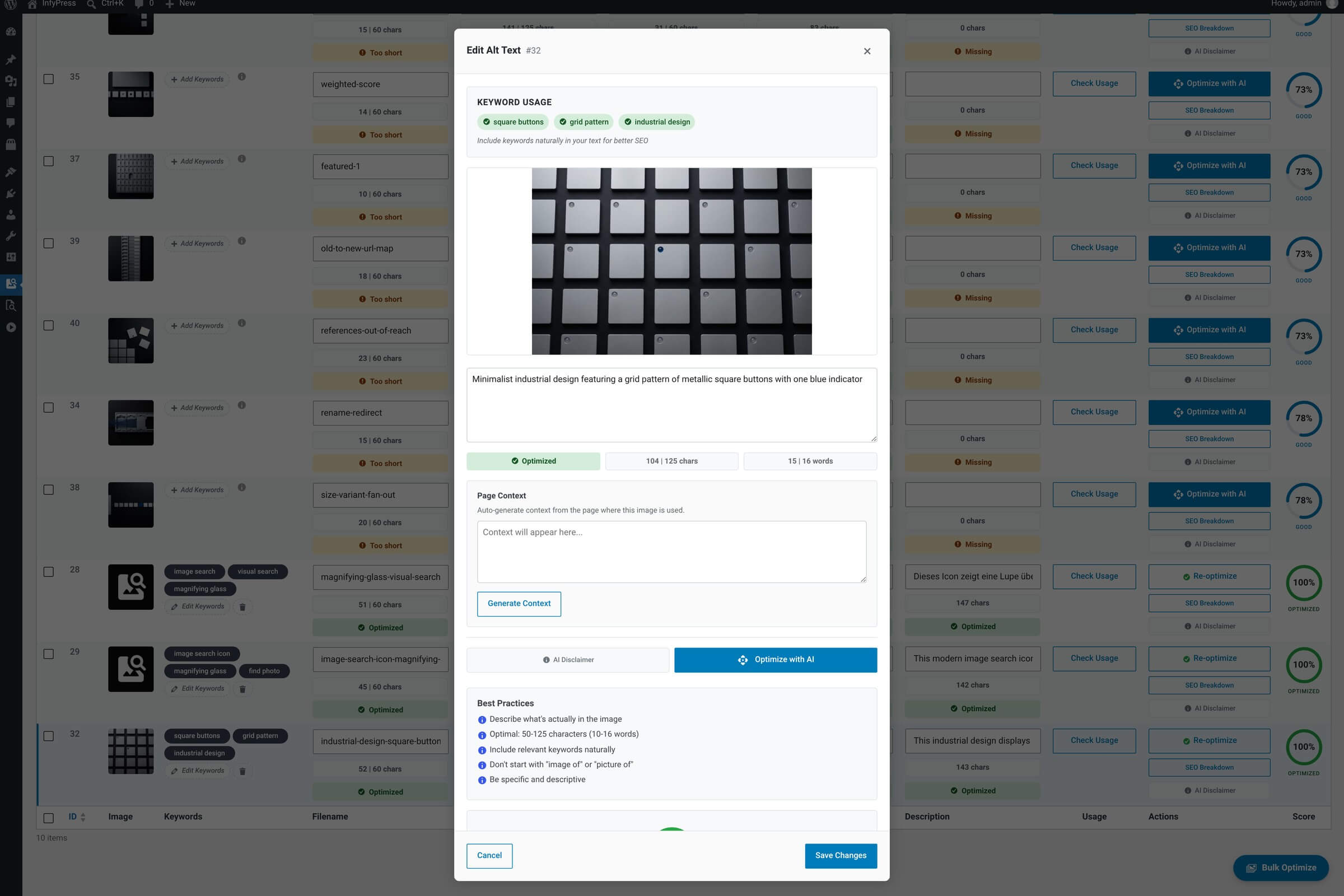
What it shows
Modal contents
| Feature | What it does |
|---|---|
| Image preview + ID badge Context. | Full-resolution preview of the image you’re describing — you can’t write good alt text without seeing the subject clearly. |
| Alt text textarea Main input. | Multi-line text field. Type your description; live counters update on every keystroke. |
| Three metric circles Live scoring. | Keywords (do the saved image keywords appear in the alt text?), Characters and Words (inside the configured range, or inside the tolerance band around it). Alt text targets 50–125 characters and 10–16 words by default. |
| Overall SEO score Big circle. | The alt-text sub-score for this image, recalculated live. Same scale as the filename modal so you can compare contributions across fields. |
| Optimize with AI Single-field AI suggestion. | Asks the AI to rewrite alt text for this image only. Counts as one AI call. The proposal lands in the textarea — edit it before saving if you want. |
| Save Changes / Cancel Persist or discard. | Save writes to WordPress’s standard alt attribute (the same field the Media Library uses) and recalculates the row’s SEO score. Cancel discards edits. |
Slightly outside the range is not a warning
The status badge stays green while both counts sit in the range or in the tolerance band around it — ±1 word and ±15% of each character limit by default, so 50–125 characters accepts 42–144. Past the band the badge turns yellow, Too short or Too long, and alt-text quality pays half its weight. The band is editable per field on the SEO Scoring System page.
Same field as WordPress’s Media Library
The alt text saved here is WordPress’s native alt attribute — the exact same field you’d edit in Media Library → Edit attachment. Anything you save here shows up there immediately, and vice versa. The plugin doesn’t maintain a separate alt-text store.
Writing good alt text — the short version
Describe what’s in the image, not what it’s for. Aim for one clear sentence. Lead with the subject, then context. Don’t start with “Image of…” or “Picture of…” — screen readers already announce the element type. If a keyword fits naturally, use it; if forcing it would sound weird, leave it out.