The Redirects Manager (Image SEO → Redirects) is the read-side companion to the rename flow. Every time you rename an image with redirect capture on, a 301 row lands here. The page lets you confirm a redirect is live, see how often it’s being hit, and disable or delete redirects you no longer need.
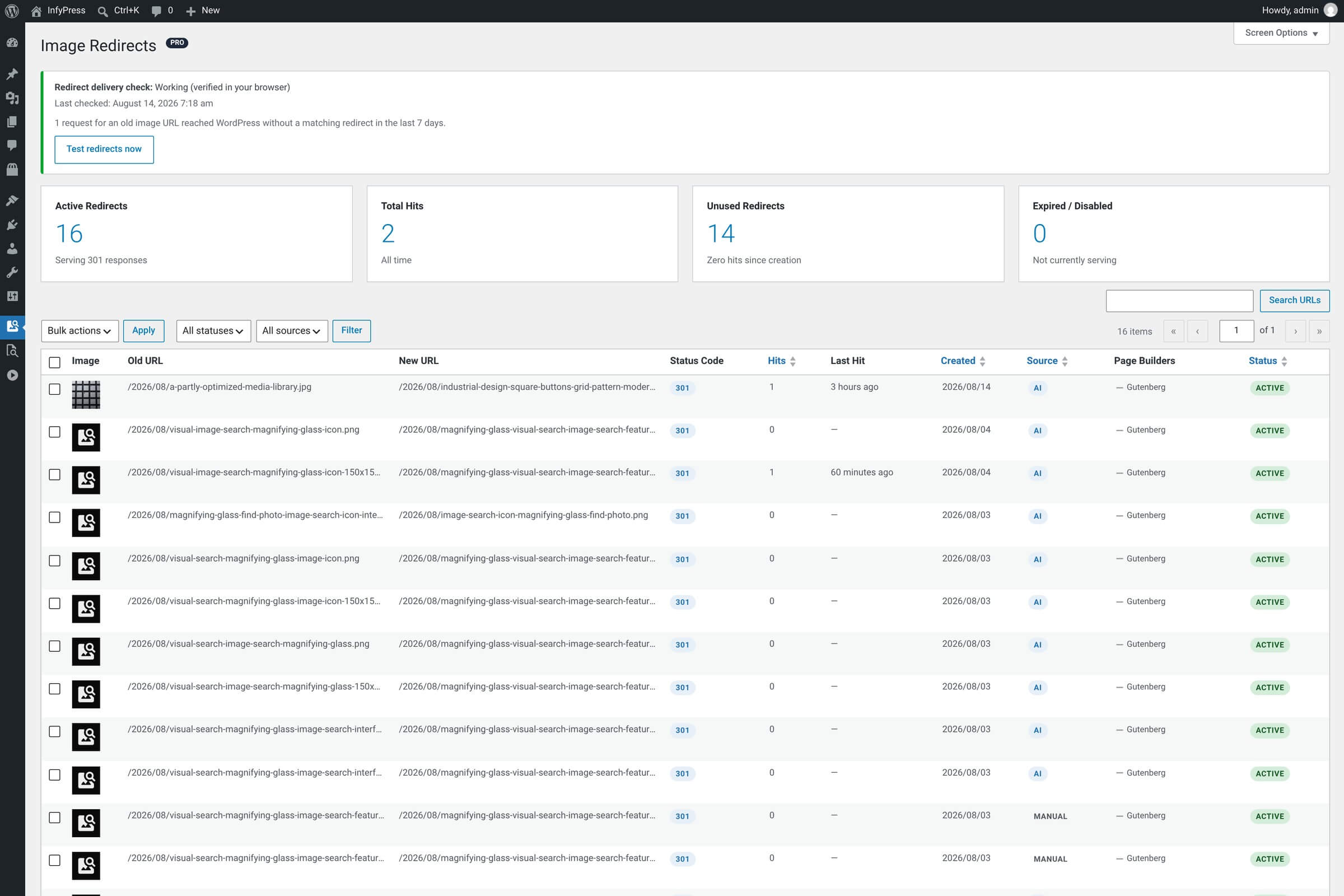
The delivery check
Above the summary cards, a delivery check card answers the question the rest of the screen assumes: do your 301 redirects actually reach visitors? The check requests a deliberately missing image URL and verifies that your server lets WordPress answer it with a redirect. Test redirects now runs two probes — one from the server itself and one from your browser, which travels the real public path including any CDN. The browser result wins.
The check also runs on its own: weekly, shortly after your first rename, and whenever your server software changes. Four outcomes are possible: working (verified from the server), working (verified in your browser), not tested yet, and not working. Only a definitive answer from a probe — an old URL coming back as an error instead of a redirect — produces the not-working state; a check that cannot complete is reported as exactly that, not as a failure. When a test shows redirects are not reaching visitors, a warning appears on every plugin screen and in Site Health, and the card explains what to ask your host. The card also counts requests for old image URLs that reached WordPress without a matching redirect over the last seven days — a growing number means visitors are hitting URLs the table no longer covers.
The summary cards
Four stat cards at the top of the page
| Feature | What it counts |
|---|---|
| Active Redirects Currently serving 301s. | Redirects with status “active” — the ones actually responding to traffic. |
| Total Hits Cumulative requests. | Every time a 301 has fired, summed across all redirects. Useful as a sanity check that the rename flow is doing real work. |
| Unused Redirects Zero hits since creation. | Redirects that haven’t served any traffic. Safe candidates for deletion if you want to tidy up. |
| Expired / Disabled Not currently serving. | Redirects you’ve toggled off plus any that have hit an expiry date. |
The list table
Columns, in order
| Feature | What it shows |
|---|---|
| Image Thumbnail + ID. | Small thumbnail of the image this redirect belongs to. Linked to the image so you can jump to its row in the main table. |
| Old URL The URL being redirected. | The pre-rename URL — what visitors and crawlers hit. |
| New URL The redirect target. | The post-rename URL — where the 301 sends them. |
| Status Code HTTP code. | Almost always 301 (permanent). Stored explicitly so the redirect type is auditable. |
| Hits Sortable. | Total times this 301 has fired. Click the column header to sort by busiest or quietest. |
| Last Hit Most recent fire. | The timestamp of the most recent request. Empty if the redirect has never been used. |
| Created Sortable, default DESC. | When the redirect was registered. Default sort puts the newest at the top. |
| Source AI or manual. | How the rename that produced this redirect was triggered — an AI badge for AI-suggested renames you accepted, Manual for filenames you wrote yourself. |
| Page Builders Per-adapter result of the rename. | One chip per adapter that ran, named after the builder: a tick when it updated posts, a dash when it found nothing to change, a warning icon when it reported errors. Hover a chip for the counts of posts and URLs it touched. A plain em dash means no adapter results were stored with the redirect. |
| Status Sortable. | active / disabled / expired. Click the header to sort by it, or narrow the list with the All statuses and All sources dropdowns above the table. |
Bulk actions
Select redirects with the row checkboxes, choose an action from the bulk dropdown, and submit. There are three options:
Available bulk actions
| Feature | What it does |
|---|---|
| Disable Soft-off. | Marks the redirect as inactive but keeps the row in the table. The 301 stops serving until you re-enable it. Useful for testing or when you suspect a redirect is interfering with something. |
| Re-enable Re-activate. | Flips disabled rows back to active. The 301 starts serving again immediately. |
| Delete Permanent. | Removes the row entirely. The old URL will start 404’ing on the next request. Use for redirects that were created in error, or for cleanup of long-unused entries. |
Redirects can’t be created manually
There’s no “Add new redirect” button on this page — the table is auto-populated from rename events only. If you want to redirect a URL that wasn’t created by an image rename, use a general-purpose redirects plugin alongside this one.
Delete doesn’t undo the rename
Deleting a redirect row doesn’t restore the old filename — that file was renamed when you saved in the Filename modal. Deleting only removes the 301, so any leftover link to the old URL will start 404’ing. To revert the rename itself, rename the image back manually in the Filename modal (a new 301 will be created in the opposite direction).