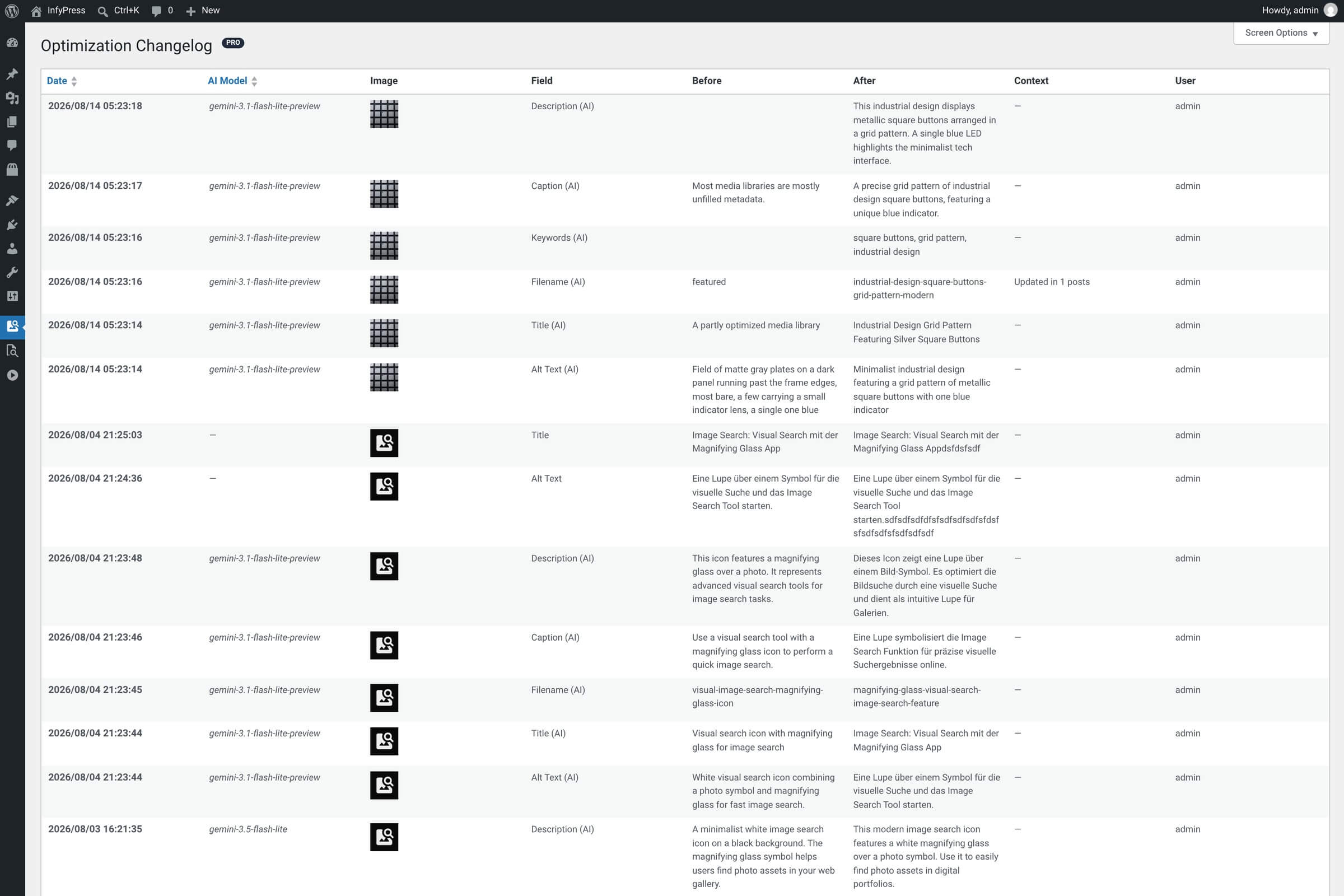
The Change History page (Image SEO → Changelog) is the plugin’s audit trail. Every time a field changes — whether the AI wrote it during an optimization or you typed it by hand — a row is added here showing exactly what changed, when, and who did it. Useful for spotting bulk runs after the fact, tracking down which optimization regressed a particular image, or just reviewing the AI’s work.
What gets logged
Events recorded in the changelog
| Feature | When it logs |
|---|---|
| AI optimizations Full-image AI runs. | One log entry per changed field. A single Optimize with AI on an image typically produces 3–5 rows (one for each field the AI wrote). |
| Single-field AI suggestions Optimize-this-one-field actions inside individual modals. | One row per field that actually changed, with the model selected for that run in the AI Model column. |
| Manual field edits Anything you typed and saved in a field modal. | One row, AI Model column left empty. Helps separate human edits from AI-generated changes in the log. |
| AI keyword changes Keywords rewritten during a full optimization. | One row, logged as Keywords (AI), when an Optimize with AI run changes the keyword list. Generating or editing keywords inside the Keywords modal writes no row — that path saves the keyword meta directly. |
| Pro bulk runs, jobs and real-time uploads Every Pro write path. | Each image produces the same rows as a single-image run, because Pro drives the same optimize call — nothing marks a row as part of a bulk run. Real-time upload optimizations save through this same path since Pro 1.0.1, which is what puts them in the log. |
No-op edits are skipped
If a save doesn’t actually change a value — for example, you opened a modal and saved without editing — no log row is created. Only real changes are recorded.
The columns
List table columns
| Feature | What it shows |
|---|---|
| Date Sortable, default DESC. | Timestamp of the change. Newest at the top by default. |
| AI Model Sortable. Empty for manual edits. | The model selected in AI settings when the change ran — for example claude-haiku-4-5 or gpt-4.1-mini. Blank when a human made the edit. |
| Image Thumbnail + ID. | Which image the change applies to. Links back to the image’s row in the main table. |
| Field Which value changed. | Alt Text, Filename, Title, Keywords, Caption (Pro) or Description (Pro). Rows written by an AI run carry an (AI) suffix — Alt Text (AI) — so AI work and hand edits stay distinguishable even at a glance. |
| Before Previous value. | The value that was on the image just before the change. |
| After New value. | The value after the change — what’s currently saved on the image (unless it has been edited again since). |
| Context Free-text hint. | Extra info about how the change happened — for example “Updated in 3 posts” on a filename rename that propagated to page-builder content. Empty on most rows. |
| User WordPress user. | Who triggered the change. Bulk runs and individual clicks alike record the logged-in user that started them. |
Connectors change which model answers, not this column
With WordPress AI Connectors active, your model choice is a preference — WordPress routes the request to a compatible model from the connectors you configured. The changelog still records the model you selected in AI settings. Since 1.0.6 the model that actually answered is recorded in the API Usage log instead, under the wordpress provider.
Rollback is not yet available
The changelog is currently a read-only audit log — there’s no “Restore this value” button on individual entries. If you want to revert a change, open the relevant field’s modal on the image (alt text, filename, etc.), copy the Before value from the changelog, and paste it in. A built-in rollback feature is on the roadmap.
How long entries are kept
Changelog entries are not auto-pruned — they stay until you remove them. On a high-traffic site that runs bulk optimizations regularly, the table can grow over time. If size becomes a concern, you can clear out old entries manually from the database; a built-in retention policy is on the roadmap alongside rollback.