On WordPress 7.0 or later, Image SEO Optimizer runs without a plugin API key. The requests go through the AI connector configured in WordPress itself, so the credential lives in core rather than in the plugin. This page covers how to select that path, what changes while it is active, and what happens when it cannot serve.
What AI connectors are
WordPress 7.0 added AI connectors: one site-level place to configure an AI provider, under Settings → Connectors, that any plugin can ask for a generation. Image SEO Optimizer uses that path when you select it. It never registers, configures or edits a connector itself.
The plugin decides whether the path exists by checking for the core AI client at runtime. On WordPress 6.1 through 6.9 it is absent, the option stays disabled, and the page names the WordPress version your site is running instead.
Available and configured are two different things
WordPress 7.0 makes the core AI client available. A connector holding a credential makes it configured. Requests succeed only with both, and the plugin says which one is missing rather than failing generically. Only connectors of type ai_provider count — core registers other connector types too.
Turning it on
Two screens are involved. WordPress owns the connector and its credential; the plugin only picks the method. The switch sits in the Connection Method card at the top of the API Keys page.
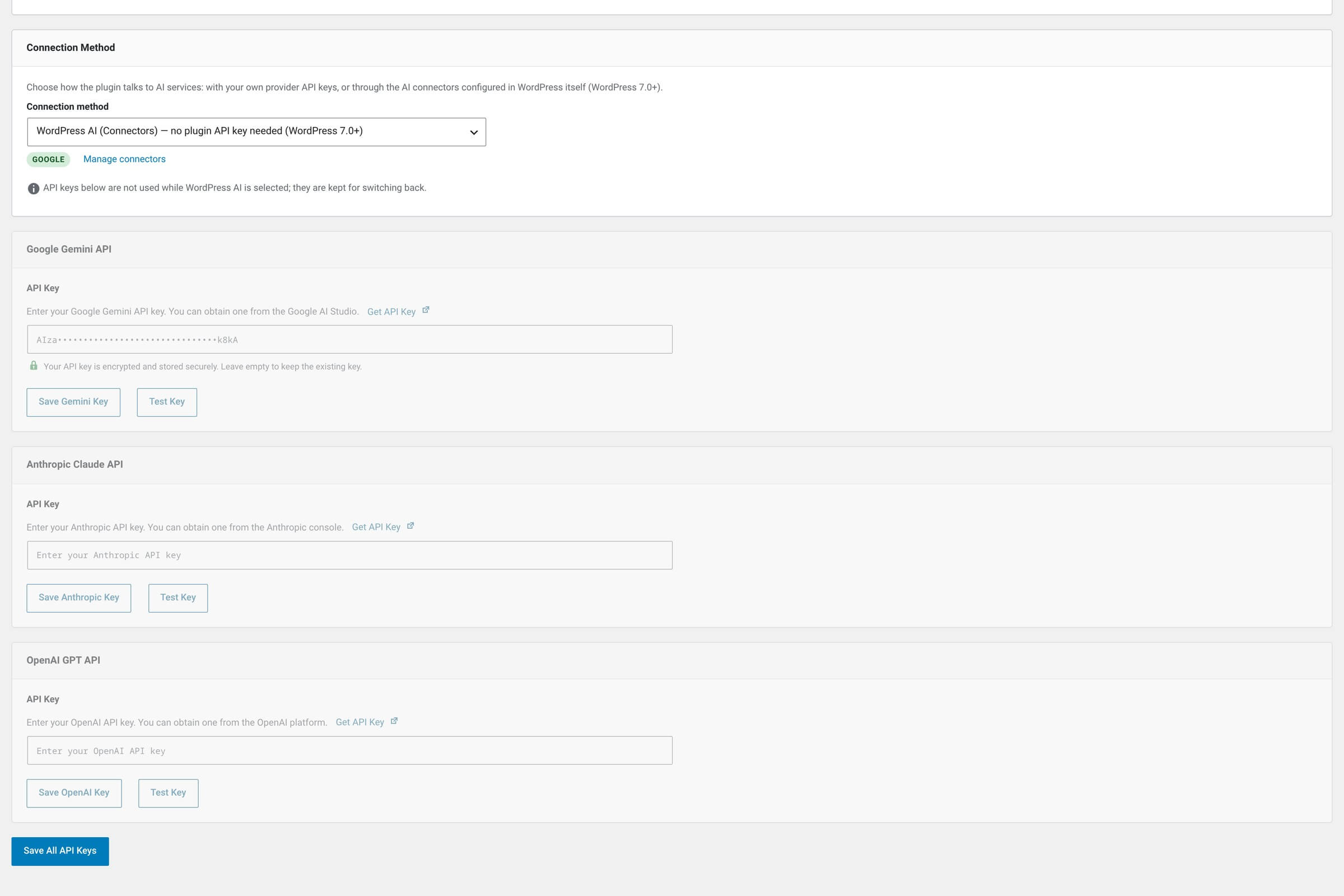
Switch to WordPress AI
Configure a connector in WordPress
Open Settings → Connectors and set up an AI provider connector with its credential. A connector counts as connected when its credential resolves from a setting, a PHP constant or an environment variable — the same three sources core checks.
Open the API Keys page
In the WordPress sidebar, go to Image SEO → API Keys. The Connection Method card sits directly above the provider key cards.
Select the connectors option
Pick WordPress AI (Connectors) — no plugin API key needed (WordPress 7.0+). The choice saves as you make it. Each connected connector then shows as a badge next to the select; with none configured the card reads No connector configured. and links to Settings → Connectors.
Confirm on the dashboard
Open Image SEO and look at the AI Model field in the AI Settings metabox. An AI Connectors active badge next to the dropdown confirms that requests now go through core.
Selecting the method does not create a connector
The select switches even when no connector exists — the plugin does not block the choice, it warns about it. A fresh install with a usable connector and no saved keys gets the same question earlier: the setup wizard opens its API keys step on a Connect screen and preselects WordPress AI, with Use my own API keys as the other card.
What changes while it is active
Your model choice stops being a routing decision and becomes a preference. Core receives the model id and answers from a configured connector, which may be a different provider’s model. The badge tooltip states it plainly: “Your model choice is sent as a preference; WordPress routes the request to a compatible model from the configured connectors.”
Behavior on the connectors path
| Setting | Description |
|---|---|
Provider routing
|
Every model is served by the core client, whatever prefix its id carries. The provider recorded for the call is wordpress, which reads as WordPress AI in the usage tables. |
Per-model token caps
|
Deliberately not applied. A cap tuned for the model you picked can truncate the answer of a substituted model into unparseable output, so core and the connector apply their own limits instead. |
Prompt format
|
Forced to plain JSON. The provider-specific formats — tool use for Claude models, for example — are not used on this path. |
Temperature
|
Still sent when the selected model's configuration sets one. Provider-specific extras are ignored, since core decides which provider answers. |
Usage logging
|
Records the model that actually answered, not the one you selected. That is the only place the substitution becomes visible after the fact. |
The Changelog behaves differently, and the difference is worth knowing before you go looking. It has no provider column, and its AI Model column records the model you selected. The model that actually served the request appears in API Usage & Costs, alongside WordPress AI as the provider.
Cost estimates get rougher here
The Est. Cost column multiplies a per-model rate from the plugin’s registry by an estimated token count. When core answers with a model the registry does not know, the estimate falls back to a flat $1.00 per million tokens. Those rows are indicative — your provider’s own billing screen is the real number.
Heads-up when the model and the connector disagree
Change the AI Model dropdown to a provider that has no connector and a notice appears at once: “No Anthropic Claude connector is configured in WordPress. Requests for this model will be answered by another connected provider’s model instead.” The request still runs. It is a heads-up about substitution, not a block.
When it cannot serve
Two states stop requests, and each one has its own admin notice on the plugin’s screens. Neither falls back to your stored API keys. That is deliberate: a site restored to an older WordPress must not quietly start spending on keys you saved months ago.
The two failure states
| Setting | Description |
|---|---|
The site no longer runs WordPress 7.0
|
An error notice titled "Image SEO — WordPress AI unavailable": "WordPress AI Connectors is selected as connection method, but this site no longer runs WordPress 7.0 or later. Switch back to plugin API keys on the API Keys page." |
No connector is configured
|
A warning notice titled "Image SEO — no AI connector configured", with a link to Settings → Connectors. Optimization fails with: "No AI connector is configured in WordPress. Configure one under Settings → Connectors or switch back to plugin API keys." |
Both notices are limited to administrators and to the plugin’s own screens, so they never leak onto unrelated admin pages. Someone optimizing an image without that capability sees the failure on the request itself rather than as a notice.
Switching back
Select Plugin API keys — you provide provider keys below (works on every WordPress version) and the next request uses your own key again. Nothing needs re-entering. While WordPress AI is selected, the provider cards carry the note “API keys below are not used while WordPress AI is selected; they are kept for switching back.”
Existing key setups keep working unchanged
The stored connection method defaults to plugin API keys, and any value other than the connectors one degrades to that default. A site that never touches this screen behaves exactly as it did before 1.0.6 — the connectors path is opt-in, on every install.
Next steps
API Keys
The connection method select, encrypted key storage, and what the Test Key button proves.
Setup wizard
The first-run wizard, including the Connect step that asks how your site should reach an AI provider.
API Usage & Costs
Where the serving model, the WordPress AI provider row and the cost estimates show up.