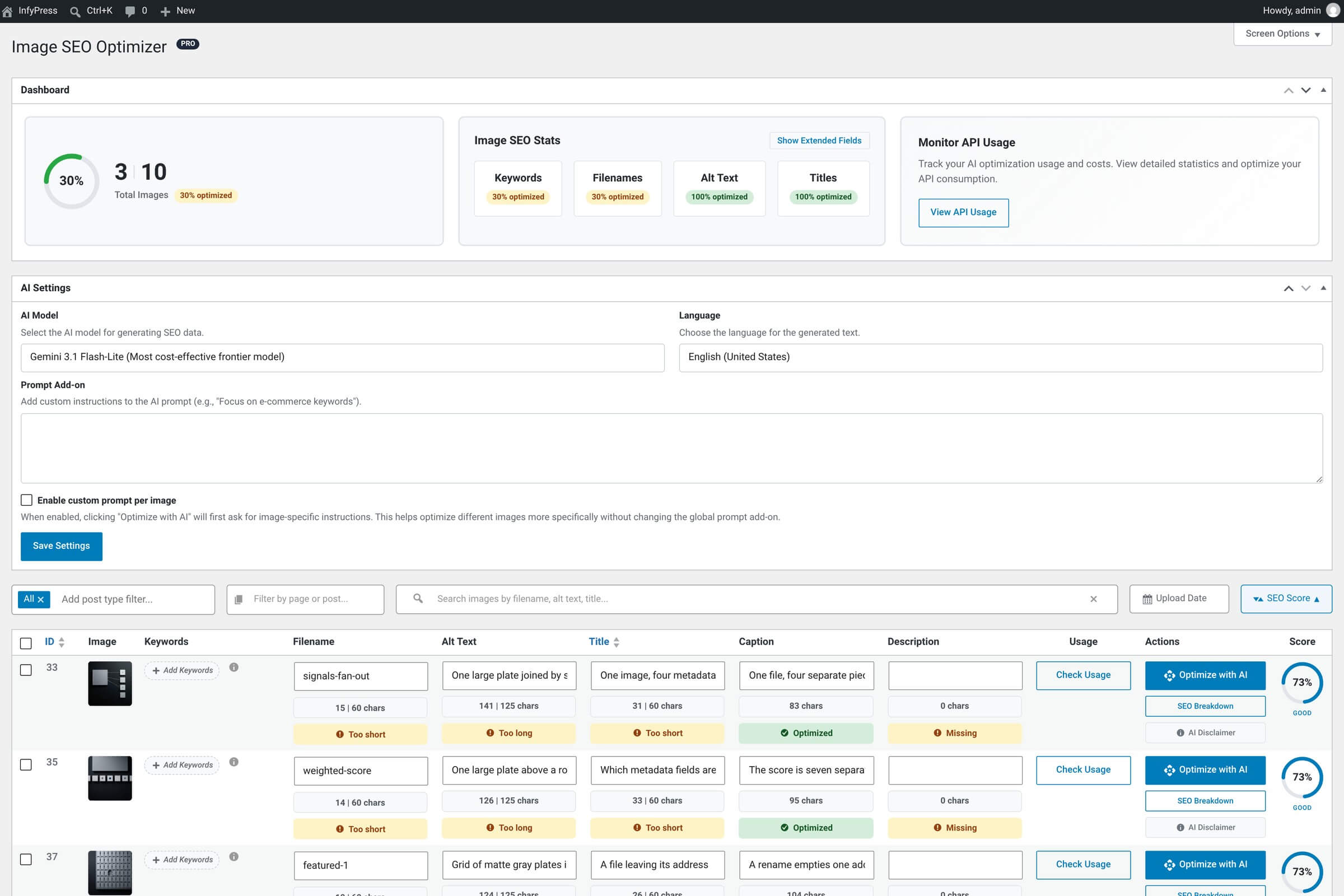
The AI Settings metabox is the panel that sits alongside the image table on the main plugin dashboard. It’s where you pick which AI model runs, which language it writes in, and (optionally) a sentence of context that shapes its tone. Four fields, one Save button — and the language you picked in the setup wizard is already selected here.
It’s a metabox, not a separate page
Because it lives on the dashboard, AI Settings is always one click away from the table you’re actually working with. Changes save inline, with no page reload. It is the only screen in the admin that holds these four fields — the setup wizard writes the language once, and the REST API can read and change all four.
The four fields
Each field has its own deep-dive page; this section is the at-a-glance tour.
AI Model — pick which AI runs
One optgroup per provider — Anthropic, Google and OpenAI — with the newest model last inside each group. The provider is read from the model name. Deep dive: AI Model & Optimization.
Language — what the AI writes in
Defaults to your WordPress site language, and generation follows that default from the first call. All 133 locales in the plugin's list. Deep dive: Prompts & Language.
Prompt Add-on — shape the AI's voice
Optional sentence of context appended to every AI request. E-commerce, travel, real-estate examples in the deep dive.
Enable custom prompt per image — one-off overrides
Adds a prompt dialog before each row optimization for image-specific context. Details below.
A badge appears when connectors serve the requests
Switch the connection method to WordPress AI and an AI Connectors active badge sits next to the AI Model dropdown. Its tooltip says what changed: Your model choice is sent as a preference; WordPress routes the request to a compatible model from the configured connectors. Your pick is still saved and still sent — core decides which model answers, and the usage log records the one that did. Full behavior in WordPress AI Connectors.
What “Enable custom prompt per image” actually does
This single checkbox quietly changes the optimization flow in a way worth understanding. With it off, every AI call uses your saved Prompt Add-on (or no addon at all if it’s blank). With it on, an extra step appears between clicking Optimize with AI and the actual AI call:
Click Optimize with AI on any row
Same button as always — the Actions column in the Images table. Single-field runs from the alt text, title and filename modals do not ask.
A Custom Prompt dialog opens
A small dialog appears with the image and a text field for one-off context — for example, This is a guest post about Berlin coffee shops for an outlier image. The AI request waits until you respond.
Submit → optimization runs with that prompt
The text you typed is sent in place of your saved Prompt Add-on for this one request. It’s not appended; it replaces the global addon entirely, so the AI doesn’t see both at once.
Or cancel → optimization aborts
Closing the modal (X, Esc, or clicking outside) cancels the optimization. Nothing is sent, nothing changes on the image.
Per-image prompts replace, not stack
With both a global Prompt Add-on and per-image prompts on, the per-image text wins — the global addon is skipped on every run while the box is checked, so context never doubles up. The metabox disables the Prompt Add-on textarea to make that visible. Per-image text is not saved; it is used for that single optimization and discarded.
When to leave it on
If your site has one consistent voice — an e-commerce store with a single product type, say — leave it off and use the global Prompt Add-on. If the library is mixed (guest posts, several product types, occasional outliers), turn it on and give the AI context per image where it matters. The cost is one extra dialog per optimization.
Saving
Changes save inline when you click Save Settings — no page reload, no banner. The new model / language / prompt take effect on the very next AI call.