The image list table is the working surface of the plugin: a paginated, filterable, sortable view over every image attachment in your media library. From here you optimize, edit and inspect — most of the modals documented in this section open from a click inside one of these columns.
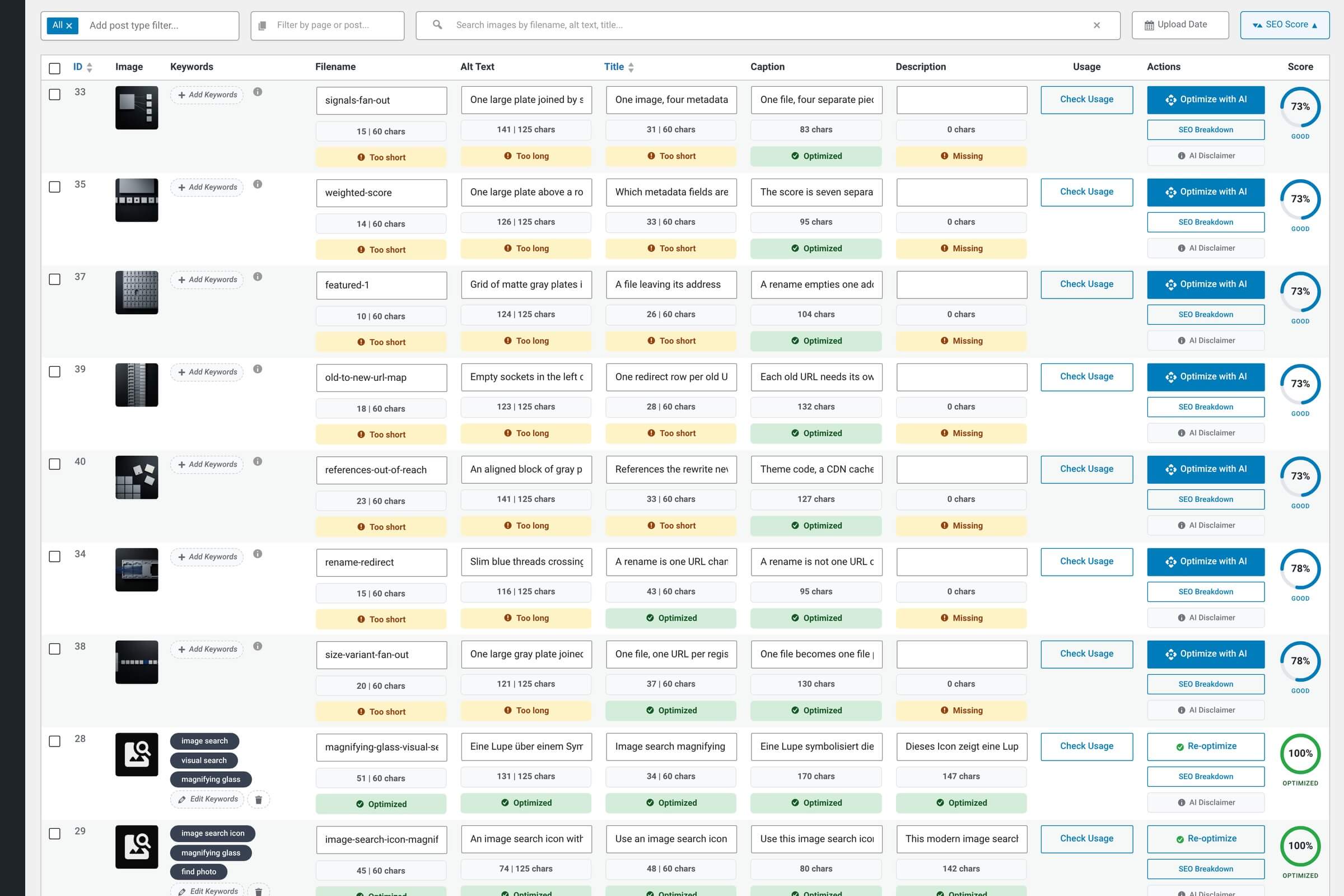
Columns (free plugin)
Left-to-right, the free plugin shows nine columns. Each one either displays a value, edits a value, or triggers a modal — none are purely decorative.
Free-plugin columns, in order
| Feature | What it shows | What clicking it does |
|---|---|---|
| ID Attachment post ID. | WordPress attachment ID number. | Reference only — not clickable. |
| Image Thumbnail preview. | Small image thumbnail rendered at table resolution. | Opens the Image Preview modal — full-size view, metadata, file path. |
| Keywords SEO keywords for the image. | Up to three keyword tags. Empty if not yet optimized. | Opens the Keywords editor modal — add, edit, remove. |
| Filename The image’s filename on disk. | Current filename. Raw camera names (IMG_*.jpg) flagged visually. | Opens the Filename editor modal — rename safely with auto-301 redirects. |
| Alt Text WordPress alt text for accessibility. | The image’s alt attribute. Empty if not yet generated. | Opens the Alt Text editor modal. |
| Title WordPress post title for the attachment. | Attachment title. WordPress’s filename-derived default doesn’t count as optimized. | Opens the Title editor modal. |
| Usage Where the image is used on your site. | A Check Usage button. No count is rendered with the row — the lookup runs on demand, not on page load. | Runs the lookup and opens the Image Usage tracker modal — every post, page and page-builder reference, each labelled by usage type. |
| Actions Per-row actions. | Buttons for Optimize with AI and other row-level actions. | Runs the action (e.g. starts a fresh optimization for that one image). |
| Score Per-image SEO score (0–100). | Combined SEO score as a percentage ring plus a status label: Optimized (80 and above), Good (60–79), Fair (40–59), Poor (below 40). The label carries the color, and it reads the whole score — individual field badges above it stay yellow for a length problem and never turn red. | Opens the SEO Breakdown modal — which sub-scores are dragging the total up or down. |
Pro adds three columns Pro
With Image SEO Optimizer Pro active, three columns slot into the table:
Pro columns
| Feature | Where it appears | What it does Recommended |
|---|---|---|
| Bulk-select checkbox First column. | Prepended to every row, before ID. | Selects rows for a bulk operation (kicked off by the Pro floating action button). |
| Caption Pro-only field. | Inserted directly after the Title column. | Opens the Caption editor modal — Pro generates and edits the WP caption field. |
| Description Pro-only field. | Inserted directly after Caption. | Opens the Description editor modal — Pro generates and edits the WP description field. |
The Pro Floating Action Button (FAB)
Pro also adds a floating Bulk Optimize button anchored at the bottom-right of the dashboard. It opens a richer bulk dialog with progress bar, pause/resume, and live ETA. The free plugin doesn’t have a bulk-actions dropdown — Pro’s FAB is the bulk path.
Filters and search
A filter bar runs along the top of the table. Filters are independent — applying multiple narrows the result; clearing each restores the broader view.
Filter controls
| Feature | What it filters |
|---|---|
| Post type Multi-select dropdown. | Restrict to images attached to a specific post type. Pro adds custom post types and WooCommerce products to the list. |
| Page / Post AJAX-powered dropdown. | Narrow the table to images used on a specific page or post. Type to search — results load live. |
| Search box Free-text search across image metadata. | Searches filename, title, alt text and keywords together. Matches partial words. |
| Upload Date sort Toggle button. | Sort by attachment upload date (oldest / newest). Click to flip direction. |
| SEO Score sort Toggle button. | Sort by per-image SEO score (lowest / highest). Useful for finding what to fix first. |
Bulk operations
Bulk runs are handled differently in free and Pro:
The free plugin doesn’t add a bulk-actions dropdown to the table. Bulk runs go through the dedicated Bulk Optimization page, which lets you run a queue of optimizations in the background (subject to the per-user rate limits).
Pro replaces that flow with two pieces:
- The bulk-select checkbox on every row (and the master checkbox in the header).
- The Floating Action Button at the bottom-right of the dashboard — opens a Pro bulk dialog with progress bar, pause/resume, and live ETA.
See Bulk Optimization (Pro) for the full Pro flow.
Each column has its own deep-dive
Every clickable cell opens a dedicated modal. Each modal has its own page in the docs sidebar — they’re ordered the same way the columns appear in the table, so the sequence is easy to follow:
Optimizing a single image (overview)
What happens when you click Optimize on a row — the full per-image flow at a glance.
SEO Scoring System
How each image's 0–100 score is calculated and how to adjust the weights.
Renaming Files & 301 Redirects
How filename changes propagate safely across your site and search engines.