The plugin’s most important setting is just one thing: which AI model to call. Pick a Claude, Gemini or GPT model from the dropdown and the plugin works out the rest — the provider, the API endpoint, the authentication. There’s no separate Provider dropdown to keep in sync; the model carries the provider with it.
Where to find it
The AI model lives in the AI Settings metabox on the main plugin dashboard — not on a separate settings page. Open Image SEO in the WordPress sidebar; AI Settings sits alongside the image table on that screen.
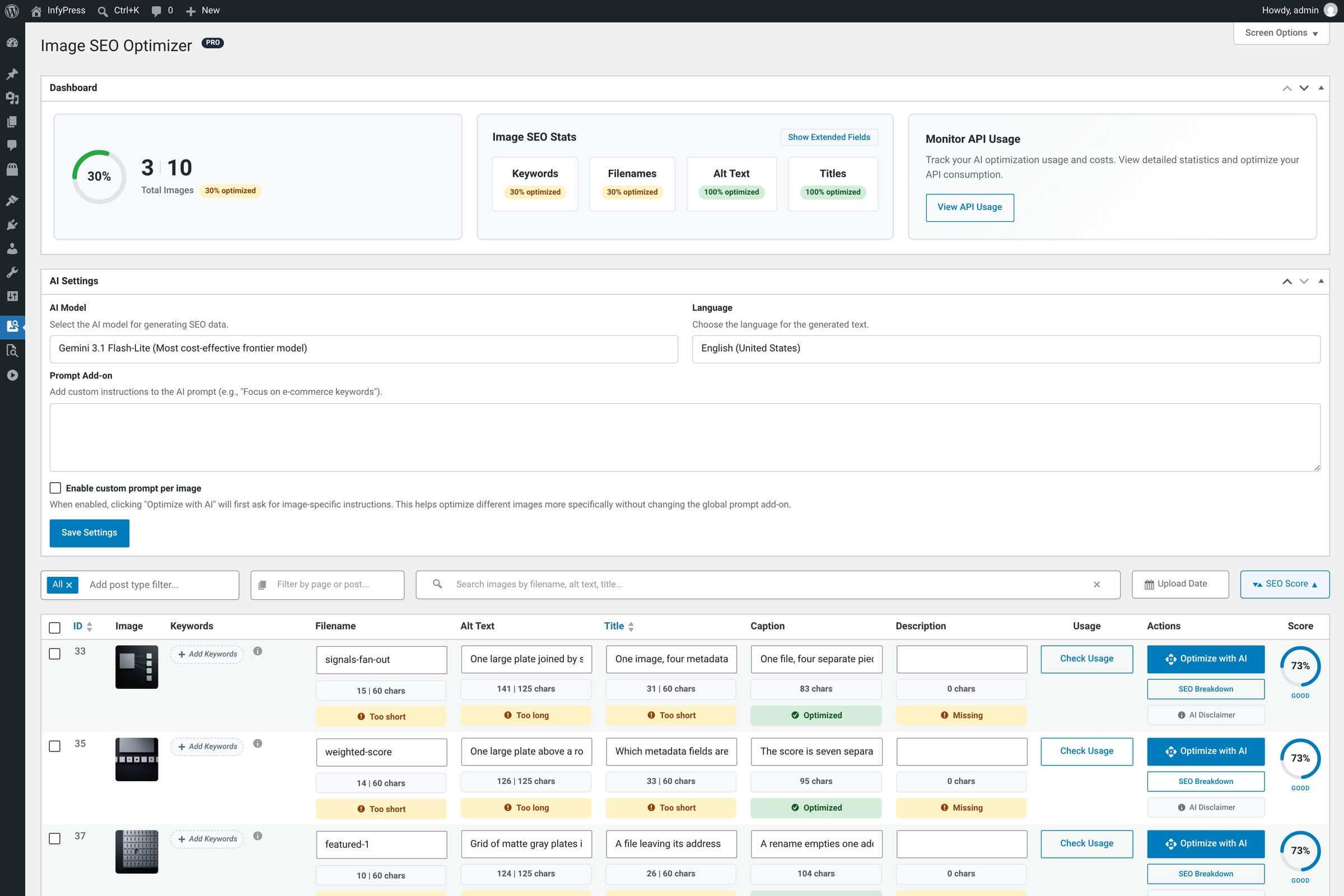
It’s a metabox, not a settings page
Because AI Settings sits on the dashboard alongside the image table, your settings stay one click away from the table you’re actually working with. The same metabox also covers language and prompt options.
The AI Model dropdown
The dropdown groups models by provider so you can see at a glance which one belongs where. The free plugin registers four models — one from Anthropic, two from Google, one from OpenAI. Image SEO Optimizer Pro adds one flagship-tier model per provider on top.
Free-tier models
| Setting | Description |
|---|---|
Claude 4.5 Haiku
|
Anthropic. Registered for fast, cost-effective analysis. The most expensive of the four at a blended $2.00 per million tokens. |
Gemini 3.1 Flash-Lite
|
Google. The default in a fresh install, and the cheapest of the four at a blended $0.56 per million tokens. |
Gemini 3.5 Flash-Lite
|
Google. Newer generation, added in 1.0.6. Blended $0.85 per million tokens. |
GPT-4.1 mini
|
OpenAI. Registered for cost-effective image analysis. Blended $0.70 per million tokens. |
Inside a provider group the dropdown lists the oldest model first and the newest last, so a new generation always appears at the bottom of its group rather than jumping to the top. The version is read from the model id, which is why gemini-3.1-flash-lite-preview sits above gemini-3.5-flash-lite.
Those prices are the plugin’s estimate rates
The figures above are the blended per-million-token rates the plugin uses to fill the Est. Cost column, assuming a 75/25 split of input to output tokens. They are reference values recorded in the model registry, not your provider invoice — checked 2026-08-12 against version 1.0.6. Your real spend lives in API Usage & Costs.
Whatever model you pick, save the form — the dropdown’s value is stored, and every subsequent AI call uses that model until you change it. To change provider entirely (say, from Gemini to Claude), pick a different model — the provider is implied. There’s no separate “active provider” switch to flip.
How the provider is auto-detected
The plugin looks at the model name and picks the matching provider automatically:
Model prefix → provider
| Setting | Description |
|---|---|
Starts with claude-
|
Routed to Anthropic. Uses the Anthropic API key from the API Keys page. |
Starts with gemini-
|
Routed to Google. Uses the Google Gemini API key from the API Keys page. |
Starts with gpt-
|
Routed to OpenAI. Uses the OpenAI API key from the API Keys page. |
Why no Provider field?
Having both a Provider and an AI Model dropdown means they can get out of sync (pick OpenAI as provider, leave Claude as the model, end up with an error). Letting the model name imply the provider removes that footgun entirely — there’s only one source of truth.
One exception overrides the table. When the connection method on the API Keys page is set to WordPress AI, a fourth provider named wordpress serves every model, whatever its prefix, and no stored key is used. Using WordPress AI Connectors covers what changes while that is active.
Built-in rate limits
Separate from your provider’s own quotas, the plugin enforces its own per-user rate limits to protect your site from runaway scripts, accidental loops and unexpected costs. These are tracked per WordPress user ID on a rolling 1-hour window. They’re set in code — not exposed as user settings — so you can rely on them being consistent across installs.
Per-user hourly limits
| Setting | Default | Description |
|---|---|---|
AI optimizations
|
100 / hour
|
Each single-image optimization counts as one. Plenty for normal day-to-day use; bulk runs of 100+ images will hit this in one go. |
Filename renames
|
500 / hour
|
Each AI optimization that produces a new filename counts toward this. The higher ceiling makes room for renames triggered alongside optimizations. |
Hit a limit?
When a limit triggers, the call is refused with “Too many requests. Please try again later.” — there’s no silent skipping. The counter is a rolling hour per user, so waiting is the fix. A bulk run of more than 100 images in one hour meets the ceiling regardless of how it was started.
Next steps
Prompts & Language
Tune the AI's voice with a prompt addon and pick from 133 output languages.
Bulk Optimization (free)
How bulk runs work in the free plugin — what's batched, how rate limits apply, what to expect.
API Usage & Costs
Live dashboard of every AI call, per-provider breakdown, monthly spend.