The free plugin’s row-by-row workflow runs out of steam past a few dozen images. Pro adds a bulk runner: select what you want optimized, click the floating button, watch the progress bar fill. You can pause, resume or cancel mid-run. This is the browser runner — the tab drives it, which is the one thing to know before starting a long run.
Two bulk paths exist, and this is the browser one
Pro 1.0.1 added server-side optimization jobs that run in WP-Cron with no browser involved. Everything on this page describes the runner behind the floating button. The section on picking between the two is at the bottom.
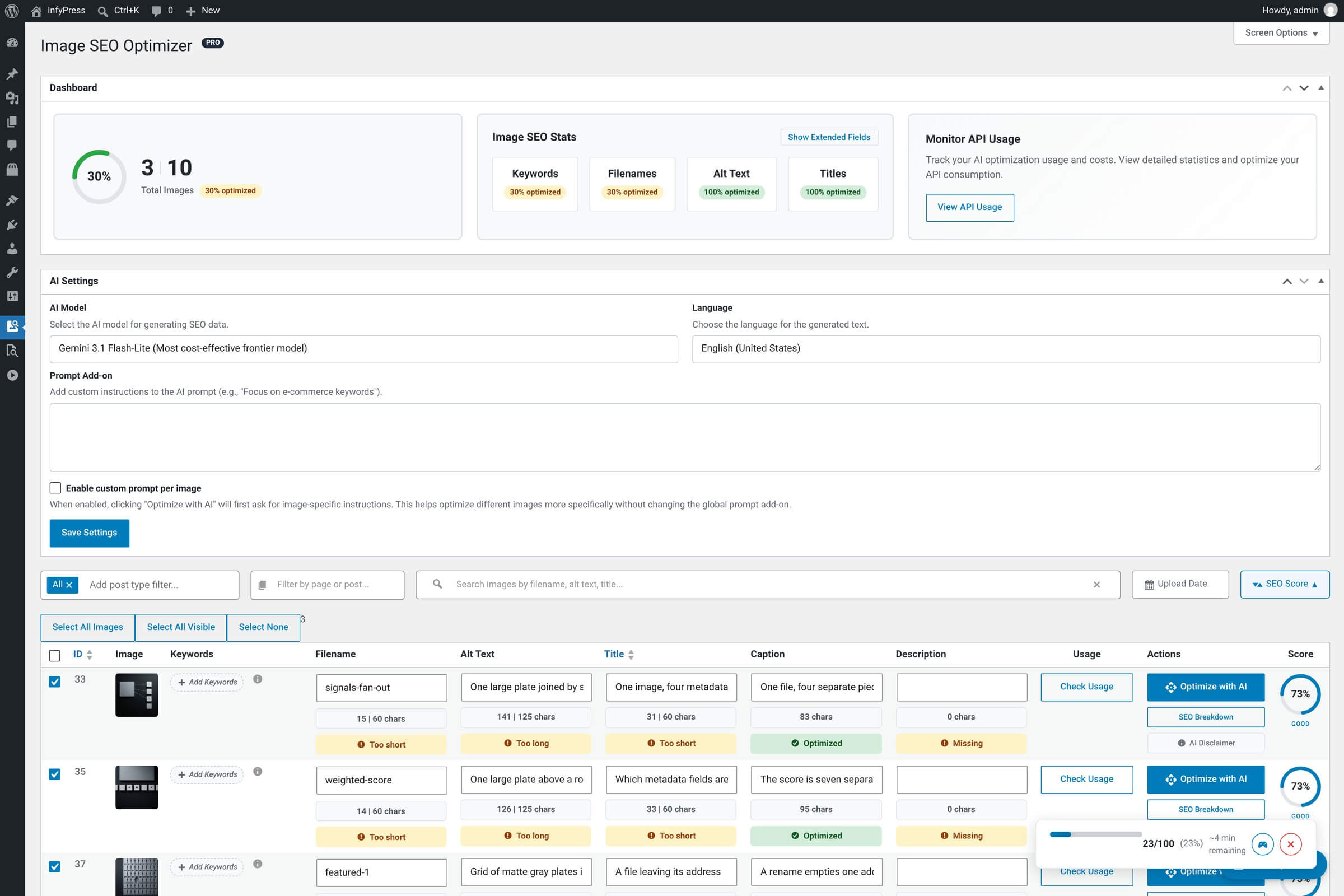
Selecting images
Pro adds a checkbox to every row in the image table (first column, before ID). Three helper buttons appear above the table:
Selection helpers
| Feature | What it selects |
|---|---|
| Select All Images Every image in your library. | Targets the entire library, not just the current page. The most common choice when you’ve just installed Pro and want to optimize a backlog. |
| Select All Visible Only the rows currently shown. | Useful after applying filters — for example, filter the table to a specific page or post, then Select All Visible to bulk-optimize just those. |
| Select None Clear the selection. | Resets every checkbox. Quick way to start over after a filter change. |
The selected-count indicator near the buttons updates live as you click.
Starting and watching a run
Click the Bulk Optimize button
The floating action button anchored at the bottom-right of the dashboard. It’s always visible — no scrolling required.
Set the run options in the confirmation dialog
Four controls: Generate keywords and Skip already optimized images are on by default, Auto-generate page context is off (it adds an AI call per image without a cached summary), and Processing Speed picks 1, 2 or 3 images at a time.
Watch the sticky progress bar
A bar sits at the bottom of the screen with the live count, percent complete and an ETA. It fills as each image finishes.
Pause, resume or cancel as needed
Three controls on the right of the bar. Pause stops new AI calls and lets the in-flight ones finish. Resume picks up from there. Cancel ends the run — anything already written stays written.
Optionally, play the mini-game
A toggle on the progress bar opens a small game overlay for the wait. Strictly optional — close it any time.
Processing Speed is remembered. Whatever you pick is saved as bulk_concurrency and pre-selected next time. The default is 1, the maximum is 3, and higher values run more requests in parallel — which shortens the run and raises the load on both your host and your provider quota.
How bulk runs interact with rate limits
Every image in the queue goes through the same request the free plugin uses for a single image. Pro orchestrates them; it bypasses no limit and no cost. That means:
What still applies during bulk
| Feature | Details |
|---|---|
| 100 optimizations per user per hour The plugin’s own cap, same as single-image. | Image 101 in the same hour comes back as Too many requests. Please try again later. The run does not stop and does not wait — it counts the image as failed and moves on. Pause the run before the cap, or split the library across hours. |
| Your provider's quotas Anthropic, Google or OpenAI billing. | A provider refusal (rate limit, daily quota, unpaid project) is handled the same way: that image fails, the run continues. Failures are counted and reported in the summary at the end, not on the progress bar. |
| Per-image cost Three AI calls per image with Pro active. | At roughly 1,000 tokens per call, 1,000 images cost about $9.00 on Claude 4.5 Sonnet, the priciest model in the dropdown, and about $0.56 on Gemini 3.1 Flash-Lite, the cheapest. Multiply by three, because Pro also writes the caption and the description. Estimates only — the API usage dashboard has the logged figures. |
A failed image is not retried
Nothing in the run queues a second attempt. Re-run the bulk optimizer afterwards with Skip already optimized images on and the failures come round again, because they were never marked as optimized. Check the completion summary for the failure count before you assume a run finished cleanly.
What each image gets
Each image gets the same multi-field optimization as a single-image run: alt text, filename, title and keywords in one AI call. With a valid Pro license the caption and the description follow, one AI call each — that behavior has no on/off switch, so plan for three calls per image. The result is identical to clicking Optimize with AI on a single row.
The per-image custom prompt flow is bypassed
If you have Enable per-image prompt turned on in AI Settings, the modal prompt step is skipped during bulk — every image just uses the saved Prompt Add-on. You can’t sit through 500 prompt dialogs. Single-image runs continue to honor the per-image prompt setting normally.
If you close the browser mid-run
The tab drives the run. Close it and the queue stops after the in-flight images — everything already written stays written, but nothing picks the remainder up again on its own. There is no background continuation on this path.
Pausing is the one action that saves a resume point. Click Pause and the remaining image IDs and counters are stored for your user for 24 hours. The next time you load the dashboard, a Resume Previous Session? dialog offers the remaining images, with Resume and Discard.
Closing the tab is not the same as pausing
The resume point is written when you click Pause, not continuously. Shutting the laptop on a running job leaves nothing to resume — the images that finished are done, the rest are untouched, and you start a fresh run over what’s left.
When to use a server-side job instead Pro
Pro 1.0.1 added a second bulk path that does not involve a browser. You create a job over REST or WP-CLI, WP-Cron drives it in ticks, and progress is written after every image — so a crash, a deploy or a PHP timeout resumes where it stopped. A job can also carry a spend cap that halts it once estimated cost reaches the limit.
Browser runner and server-side jobs
| Feature | This page (browser) | Server-side job |
|---|---|---|
| Started from How a run begins. | The floating Bulk Optimize button, with a selection you made in the table. | POST /jobs over REST, or wp infyp job create. |
| Needs the tab open What keeps it moving. | Yes — the browser drives every request. | No — WP-Cron ticks it forward. |
| Survives an interruption Crash, deploy, timeout. | Only from a point you paused at, and only for 24 hours. | Yes — the cursor is saved after every image. |
| Spend cap Stopping on cost rather than count. | None. | max_cost_usd halts the job once estimated spend reaches it. |
| Live controls What you can do mid-run. | Pause, resume, cancel, plus an ETA. | Cancel. Progress is read from the job, or from the read-only Optimization Jobs panel on the REST API screen. |
Neither replaced the other. The browser runner is the faster thing to reach for on a few hundred images you can watch; a job is what you want for a library that takes hours.
REST API reference
The /jobs routes: parameters, statuses including halted, budgets and the failure list.
WP-CLI commands
wp infyp optimize –all and the job subcommands, including the –user rule every write needs.