Pro features only load once your license key is activated. Activation is a one-time step that talks to InfyPress’s license server, confirms your key is valid for this site, and unlocks every Pro feature listed in the Pro Overview.
Where to find the License page
Once Pro is installed and activated as a plugin, a new submenu item appears under Image SEO:
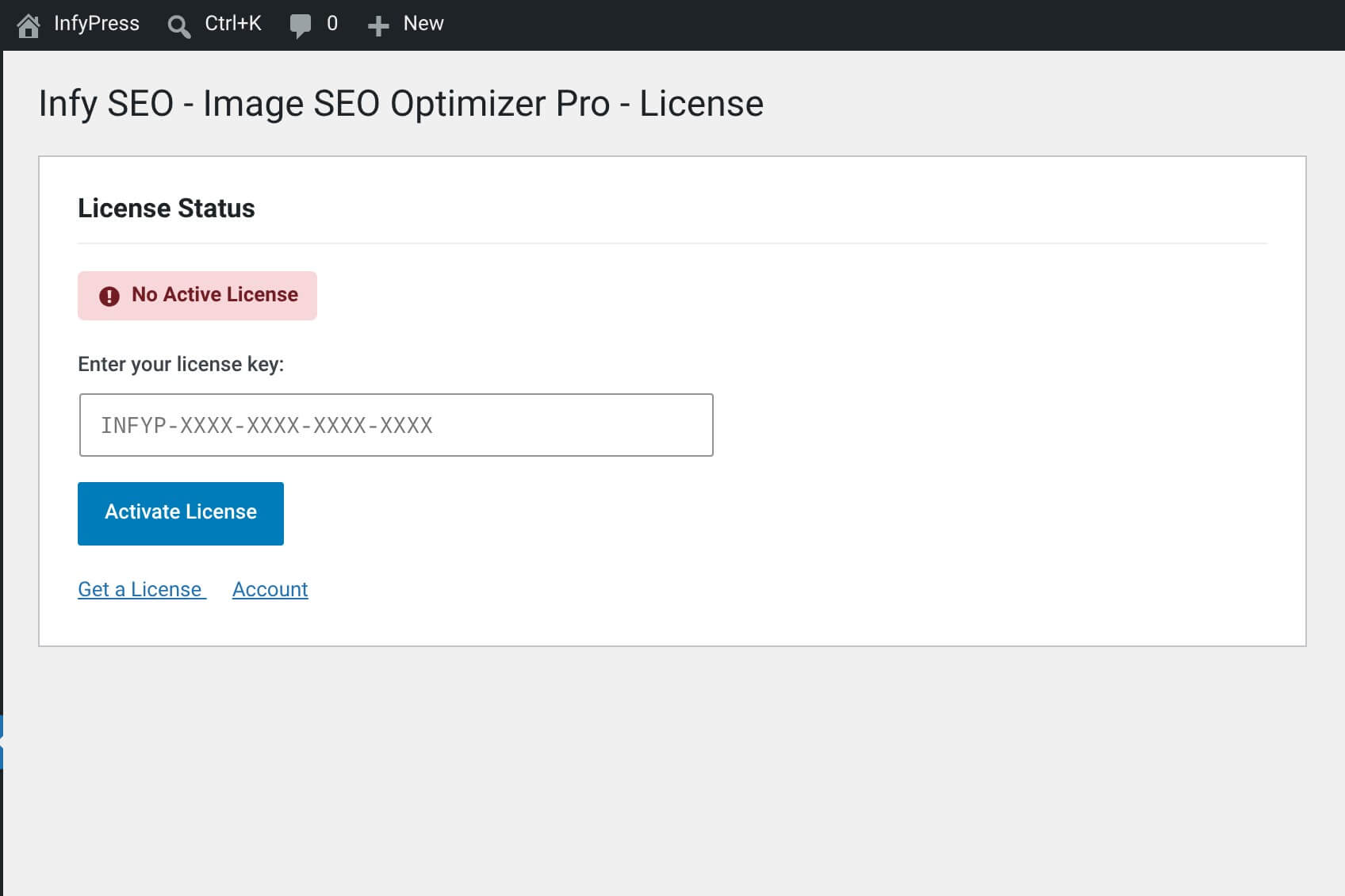
Activating your license
Open the License page
Go to Image SEO → License in the WordPress admin sidebar.
Paste your license key
Drop the key from your InfyPress purchase email (or your InfyPress account) into the field. The placeholder shows the shape the key takes: INFYP-XXXX-XXXX-XXXX-XXXX.
Click Activate License
The plugin posts the key to infypress.com/wp-json/ai-products/v1/licenses/ and verifies the signature on the answer before trusting it. The check usually takes a second or two. The panel then redraws in place as License Active.
Load another admin screen
Pro registers its features on init, so they appear on the next page load rather than in the tab you activated from. Open the dashboard: the Caption and Description columns, the bulk-select checkbox column and the floating Bulk Optimize button are there.
License states
What each state means
| Feature | What happens |
|---|---|
| No Active License Pro is installed but no key has been entered. | A notice on the plugin’s own screens offers an Enter License Key button. The Pro plugin loads its License page and nothing else — no bulk runner, no Pro modals, no Pro models, no /jobs routes. The free plugin keeps working normally. |
| License Active Valid key, verified within the last 24 hours. | Every Pro feature loads. The panel lists the masked key, the plan name, sites used against sites allowed, and the expiry date (or Never (Lifetime)). The verification result is cached for 24 hours, so ordinary page loads make no network call. |
| License Expired / Revoked / Suspended The key was once accepted and no longer is. | The panel names which of the three it is, and an error notice on the plugin’s screens offers Manage License and Renew License. Pro features gate off — except during the 7-day grace period described below. |
Validation is cached, not constant
Once a license is verified, the result is cached for 24 hours — the plugin doesn’t ping InfyPress on every admin page load. The 7-day grace period is narrower than it sounds: it applies only when the license server cannot be reached and the last stored status was valid. A server that answers and says the key is expired gates Pro off straight away.
Deactivating (moving to another site)
If you need to move a license to a different site — a new domain, or a staging environment being retired — deactivate it first so the seat frees up. The License page has a Deactivate License button below the license details. Click it, confirm the prompt, and the seat is released. Then enter the same key on the new site.
Deactivating turns Pro off on this site
Pro registers nothing without a valid license. The Caption and Description columns disappear, the bulk runner goes, the Pro models drop out of the AI Model dropdown, the /jobs REST routes stop being registered and the wp infyp commands unregister. No data is deleted — captions, descriptions, keywords, the changelog and the job tables all stay.
Switch the model before you deactivate
The AI Model setting keeps whatever id it was on. If that id was a Pro model, it is no longer registered afterwards and every optimization fails with: The selected AI model does not have a configuration. Please select a configured model or register a model config via the infyp_register_model_configs action. Pick a free model in the dropdown and the error goes away.
If activation fails
Common activation errors
| Feature | What to try |
|---|---|
| Invalid license key The key isn’t recognized. | Re-copy the key from your InfyPress account — paste mistakes are the most common cause. Confirm you copied the whole key, no leading/trailing spaces. |
| License already in use on another site The key is bound to a different domain. | Deactivate it on the other site first (License page → Deactivate License). If you’ve lost access to that site, contact InfyPress support to release the seat. |
| Network timeout The plugin can’t reach infypress.com. | Allow outbound requests to infypress.com/wp-json/ai-products/v1/licenses/ in your hosting firewall — see System Requirements for the full endpoint list. If the network is fine and activation still fails, retry in a few minutes. |