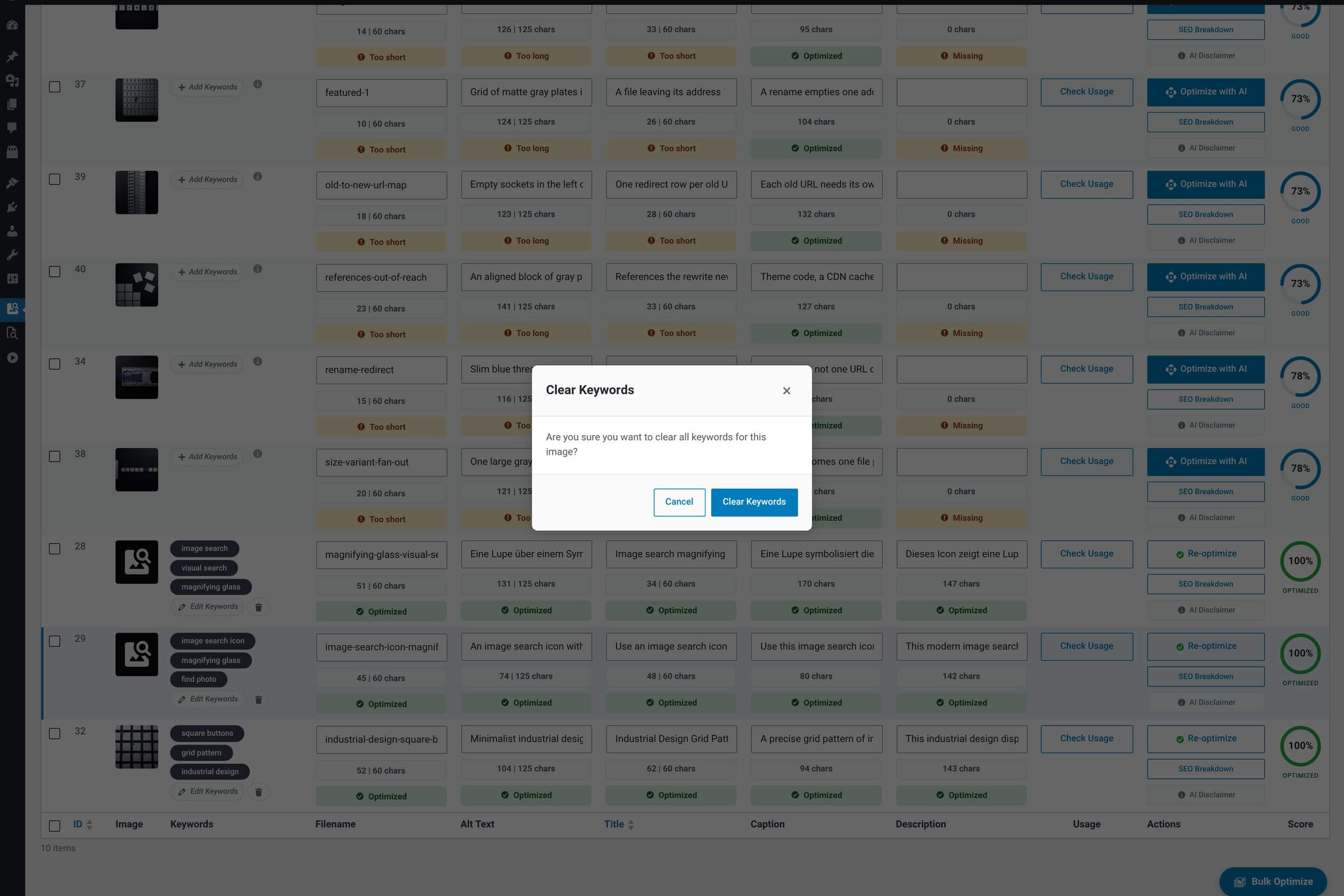
The Clear Keywords modal is a small confirmation dialog the plugin shows when you ask to wipe all keywords for an image. It exists as a safety step — clearing keywords lowers the image’s SEO score and is hard to reverse without re-running the AI, so the plugin asks once before doing it.
What it shows
Modal contents
| Feature | What it does |
|---|---|
| Confirmation message Single sentence. | “Are you sure you want to clear all keywords for this image?” — that’s the whole content of the modal. |
| Cancel Default safe action. | Closes the dialog without doing anything. The keywords stay as they were. |
| Clear Keywords Destructive action. | Removes every saved keyword for this image, closes both this dialog and the parent Keywords modal (if it was open), updates the row’s Keywords column to empty, and recalculates the SEO score (which will drop, since keyword-density components count saved keywords). |
How to open it
The dialog opens from the Keywords editor modal — specifically, the Clear Keywords button inside that modal. You won’t reach this confirmation accidentally; it’s a deliberate two-step flow.
There’s no undo
Confirming Clear Keywords permanently removes the keyword list — there’s no automatic backup or one-click restore. If you want them back later, either re-enter them in the Keywords modal or click Generate with AI to produce a fresh set. Generating fresh costs one AI call against your hourly limit.