The Image SEO Optimizer API keys screen decides how your site reaches an AI provider: with your own key for Anthropic, Google or OpenAI, or through the AI connectors configured in WordPress itself. Open it at Image SEO → API Keys. Keys are encrypted before they are saved and only ever sent to the provider whose model you selected.
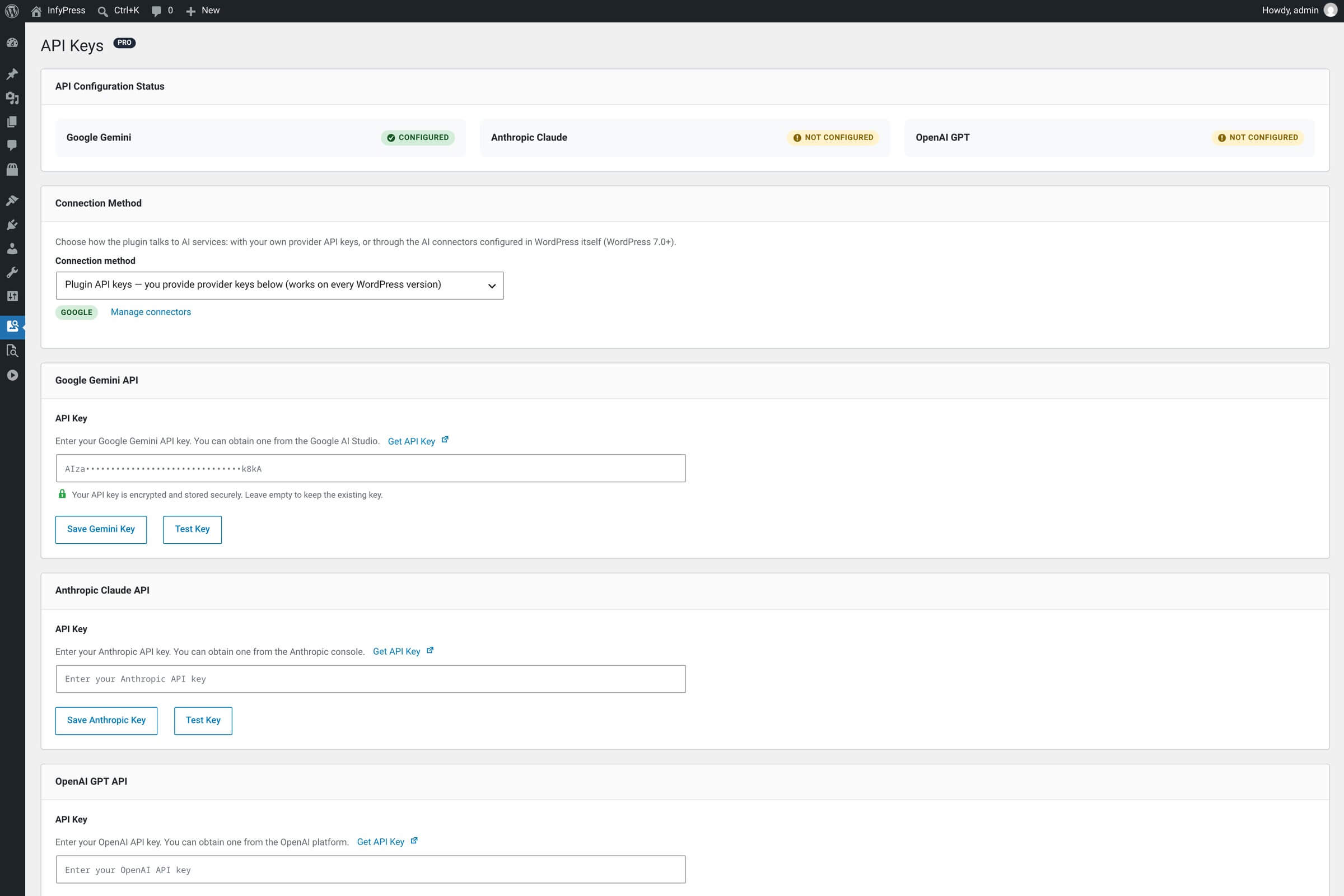
Connection method
The Connection Method card sets where the credentials come from. It has one select with two options, and the wording on screen is deliberately literal:
The two connection methods
| Setting | Description |
|---|---|
Plugin API keys — you provide provider keys below (works on every WordPress version)
|
The default. The plugin calls Anthropic, Google or OpenAI directly, with the key saved in the provider card below. Stored as api_keys in the option infyp_connection_method. |
WordPress AI (Connectors) — no plugin API key needed (WordPress 7.0+)
|
Requests go through the AI connector configured in WordPress under Settings → Connectors. No plugin key is used, and no key needs to exist. Stored as wp_ai. |
The second option is selectable only on WordPress 7.0 or later. Below the select, the page names the WordPress version your site runs and states that connectors need 7.0 or later. When they are available, each connected connector appears as a badge; with none configured the page reads No connector configured. next to a link to Settings → Connectors.
Your keys stay where they are
Switching to WordPress AI does not delete anything. The page says so on screen: “API keys below are not used while WordPress AI is selected; they are kept for switching back.” The provider cards are dimmed rather than hidden, and the select saves as soon as you change it — there is no separate save step for that field.
WordPress AI Connectors
Running without a plugin API key on WordPress 7.0+: what changes, the two failure notices, and how to switch back.
No silent fallback to your keys
If WordPress AI stays selected on a site that drops below WordPress 7.0, optimization fails with an explicit error instead of quietly billing the keys you saved earlier. Switch the method back to plugin API keys on this page to resume.
How your keys are kept safe
Every key is encrypted before it reaches the database. Storage is the option infyp_api_keys, with one slot per provider — Anthropic, Google and OpenAI. Encryption is AES-256-GCM; the encryption key is derived with PBKDF2-SHA256 from your site’s own AUTH_KEY and SECURE_AUTH_KEY salts, so it differs on every install.
What this means in practice
Encryption is tied to your site’s security salts. Rotate them — as part of a routine security refresh, for example — and the saved keys can no longer be decrypted, so you re-enter them once. The plugin also refuses to encrypt while AUTH_KEY and SECURE_AUTH_KEY still hold the WordPress placeholder values.
A saved key is never shown again. The input displays a masked version as its placeholder, and the hint under it reads “Your API key is encrypted and stored securely. Leave empty to keep the existing key.” Leaving a field empty during a save keeps what is already stored.
What saving a key checks
Saving accepts anything that could plausibly be a secret. Version 1.0.6 removed the format checks that used to run on save, because providers change their key structures — Google did in 2026 — and a prefix rule rejects valid keys sooner or later.
What a save still rejects: an empty value, anything shorter than 8 or longer than 512 characters, and anything containing spaces or control characters. A value that fails one of those is skipped and named in the response; the other keys in the same save still go through.
Key prefixes are orientation, not validation
Prefixes such as sk-ant- for Anthropic help you tell two keys apart in a password manager. The plugin does not check them and does not reject a key for having the wrong shape. Verification is a live call — the Test Key button below.
The Test Key button
Every provider card carries a Test Key button next to its save button. It sends one authenticated request to the provider’s models list — no image, no generated tokens, a 10-second timeout. Saving a key runs the same test automatically, so the result appears without a second click.
The three results
| Setting | Description |
|---|---|
Valid
|
The provider answered with a success status. The message reads "Key verified with the provider." |
Invalid
|
The provider rejected the key with 400, 401 or 403. Its own error text is passed through unchanged, so an account-level block reads differently from a mistyped key. |
Unverified
|
The provider could not be reached, or answered with something else. The key is saved either way: "Could not reach the provider to verify the key. It was saved and can be tested again later." |
Unverified is not invalid
A blocked outbound request, a timeout or a provider outage never marks your key as wrong. The key is stored, the optimizer keeps using it, and you can test again later. Results are cached for 5 minutes per provider and key — 1 minute after a network failure — so a re-test straight after a change on the provider side can still return the previous answer.
A passed test is an authentication check
Valid means the provider accepted the key on its models endpoint. It does not confirm that billing is active or that quota remains for image analysis — those show up on the first real optimization, and in API Usage & Costs.
Switching between providers
There is no separate “active provider” switch — you switch providers by picking a different model. The model name carries the provider with it: a claude- model means Anthropic, gemini- means Google, gpt- means OpenAI. Pick a different model in the AI Model dropdown and the plugin uses the matching key on the next call.
Save the key first
Picking a Claude model with no Anthropic key saved means the call cannot be made. The status card at the top of this page shows Configured or Not Configured per provider — check the one your model needs before you optimize.
While WordPress AI (Connectors) is the selected method, that prefix routing no longer decides anything. The model you pick is sent to the core AI client as a preference, and WordPress serves the request from a configured connector — which may be a different provider’s model. Your stored keys are untouched during that time.
Configure multiple, pay for one
Saving keys for all three providers costs nothing — only the provider whose model you selected is ever called. Pre-configuring all three is the fastest way to compare output quality: switch the model, run a single image, compare, switch back. The other keys sit idle.
Provider deep-dives
Step-by-step pages for getting a key from each provider, what models are available, and Pro-only model upgrades:
Provider: Anthropic Claude
Get a Claude API key from console.anthropic.com and see which Claude models the plugin registers.
Provider: Google Gemini
Get a Gemini key from Google AI Studio — the provider of the default model in a fresh install.
Provider: OpenAI
Get a GPT key from platform.openai.com — paid platform account, GPT-4.1 mini in the free plugin.