Out of the box the free plugin sees images attached to standard WordPress posts, pages and the Media Library. That covers most blogs and content sites — but a portfolio that runs on a custom post type, or an e-commerce store on WooCommerce, has thousands of images the free plugin doesn’t surface. Pro fixes that automatically: every public custom post type is included, and WooCommerce is treated as a first-class citizen with product context injected into the AI prompt.
Custom post types
Pro detects every public custom post type registered on your site and automatically includes its image attachments in the image table. There’s no toggle to turn each CPT on or off individually — if it’s public, it’s included. The post types post, page and attachment are not counted as CPTs.
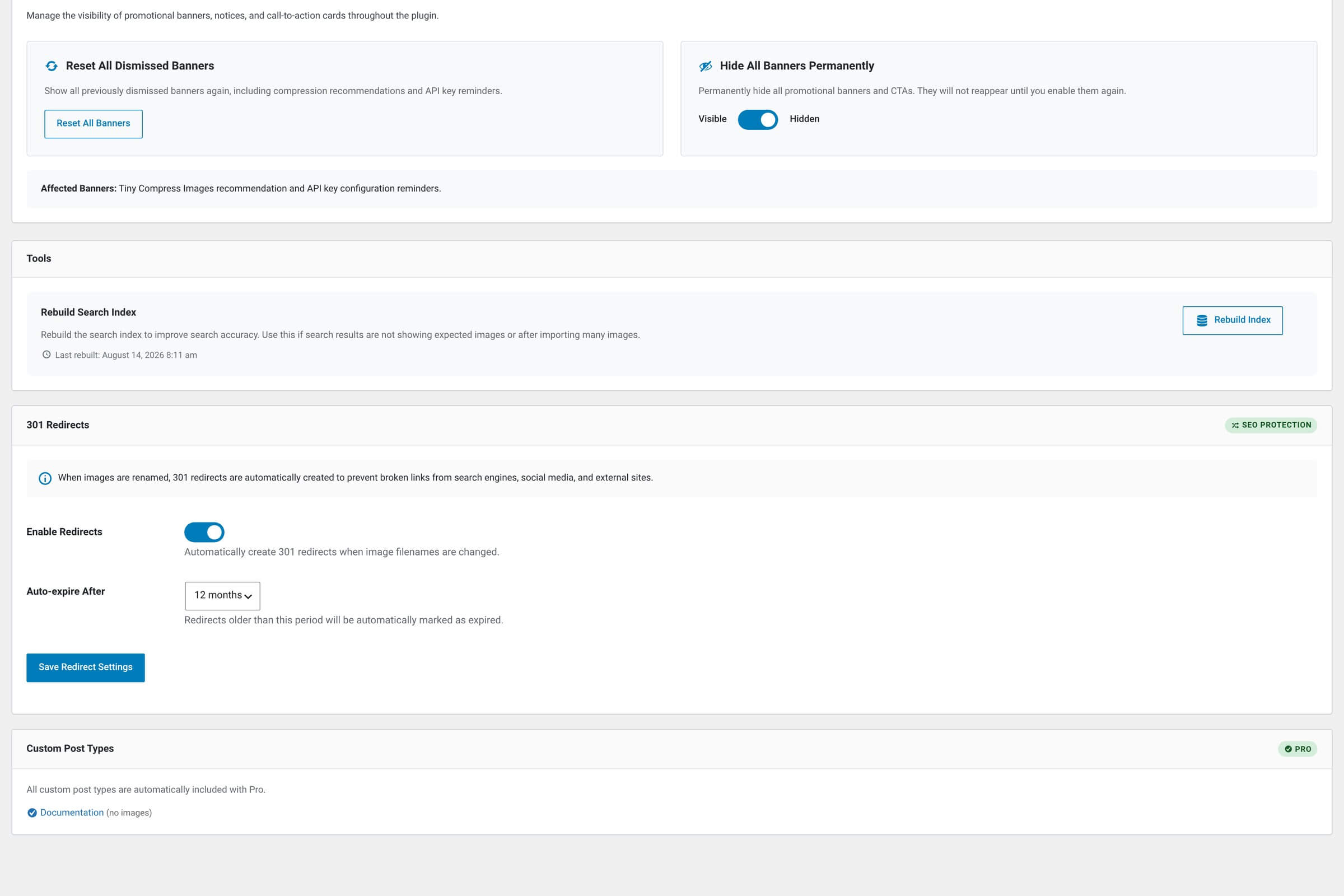
The list of what was detected sits in a Custom Post Types card at the bottom of Image SEO → Settings, added there through the free plugin’s infyp_after_settings_cards hook. The card is read-only: it names each public post type and how many images it holds, and that is all it does.
Private and built-in post types stay excluded
Anything registered with public => false doesn’t show up here — internal workflow CPTs, plugin-private types and similar are left alone. The same applies to WordPress’s built-in post, page and attachment types, which are handled by the free plugin already.
WooCommerce — the full stack
WooCommerce uses standard product CPTs for its catalog, so simple CPT support gets you most of the way. Pro adds three WooCommerce-specific behaviors on top:
WooCommerce-specific handling
| Feature | What it does |
|---|---|
| Product images Featured image on each product. | Detected as part of the standard CPT scan. Tagged in the Image Usage modal as “Product Featured Image” so you can tell them apart from blog featured images. |
| Product gallery images The extra shots Woo lets you attach. |
WooCommerce stores gallery images as a comma-separated list in the _product_image_gallery meta field. Pro parses that list and includes each one in the image table — tagged “Product Gallery” in usage detection.
|
| Product category thumbnails Images attached to Woo categories. | WooCommerce stores category thumbnails in term-meta rather than as direct attachments. Pro reads them out and includes them too — tagged “Category Thumbnail” so you can tell category images from product images. |
AI prompts get product context automatically
When you optimize a product image, Pro pulls the product’s name, short description, long description and categories into the prompt through the free plugin’s infyp_image_context filter. Every field in the run gets it — keywords, filename, alt text and title alike.
The context is trimmed to keep the prompt small: at most two products per image, the short description cut at 200 characters, the main description at 300, and up to three category names. A per-image custom prompt replaces the global Prompt Add-on and this product context entirely, so the AI sees your text instead of the catalog data.
Why this matters
Two similar-looking product photos can be very different products — say, two black backpacks where one is a hiking pack and the other is a laptop bag. With the product data in the prompt, the AI has the distinction in front of it and writes alt text that reflects it. Without it, both images get the same generic “black backpack” line, which helps nobody using a screen reader to tell them apart.
Filtering by post type
The image table’s Post Type filter (a multi-select dropdown above the table) gains all your detected CPTs and, on a WooCommerce site, a Product Categories option for category-thumbnail images. Useful when you want to bulk-optimize just one type of content without touching the others.
Common filter combos
| Feature | What you see |
|---|---|
| Filter: Product only Single CPT. | Every featured image and gallery image across your entire WooCommerce catalog — nothing else. |
| Filter: Product + Product Categories Catalog + taxonomy thumbnails. | All product images plus the category-thumbnail images. Pair with a Date sort to find your oldest unoptimized catalog assets. |
| Filter: A custom portfolio CPT Single non-Woo CPT. | Just your portfolio entries. Bulk-optimize them together with a portfolio-specific Prompt Add-on for consistent voice. |
Filename renames work the same
All the rename and 301-redirect logic from the free plugin applies to CPT and WooCommerce images too. Renaming a product image rewrites the old URL in the product description and in any page-builder content that uses it, and records a 301 while redirects are enabled. Product gallery and category thumbnails keep working without a rewrite, because WooCommerce stores those as attachment IDs rather than URLs.