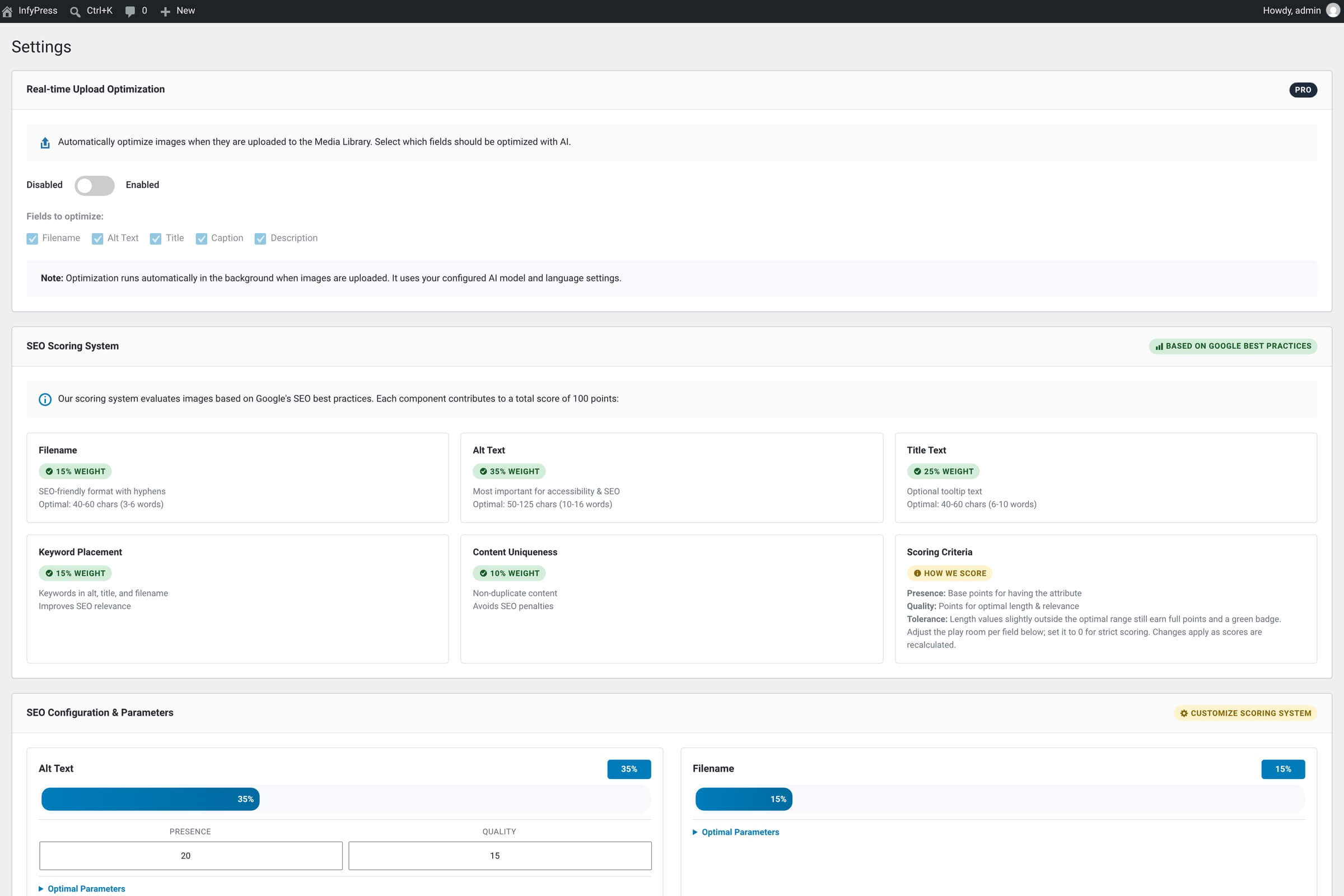
The free plugin handles existing libraries beautifully but doesn’t touch what’s just been uploaded — you have to come back to the dashboard and click Optimize with AI on each new row. Pro fixes that: with Real-time Upload Optimization enabled, every image you drop into the Media Library is optimized automatically in the background, before you ever need to think about it.
Where the setting lives
The Real-time Upload Optimization setting card sits on the main plugin Settings page (the same area as the AI Settings metabox).
How it works
Upload an image (any way)
Media Library → Add New, drag-and-drop into a post editor, the +Media button in Gutenberg — every standard upload path triggers it.
The upload completes normally
Pro does not block the upload. WordPress finishes saving the file and returns the attachment ID as usual; you see no extra latency in your editor flow.
Optimization fires in the background
An AJAX request kicks off the AI optimization. A small spinner overlay appears on the image’s thumbnail in the Media Library so you know something’s running.
Fields fill in
Alt text, title, caption, description and the filename are written to the image (whichever fields you’ve checked in settings). Filename is always processed last because renaming the file changes the URL the AI was reading.
Spinner disappears, image is ready
Refresh the Media Library or the image table on the plugin dashboard and the new fields are visible. No further action needed from you.
Per-field control
You don’t have to give the AI every field. Each of the five checkboxes in the settings card is independent — turn on only the ones you want the AI to touch.
Available fields
| Feature | When to enable it |
|---|---|
| Filename Rename on upload. | If your team uploads raw camera filenames (IMG_*.jpg, DSC_*.jpg, screenshot-* etc.) and you want them SEO-friendly without intervention. The same on-disk rename and 301 redirect flow as the manual Filename modal. |
| Alt Text Accessibility / SEO. | The single highest-leverage field. Enabling this alone covers most teams’ needs. |
| Title WP attachment title. | Useful if your theme or lightbox displays the title field — otherwise alt text usually carries the SEO load. |
| Caption Pro-only field. | If your theme or page builder renders the WordPress caption visibly under images. |
| Description Pro-only field. | If you rely on attachment pages or lightboxes that show the long description. |
Costs and rate limits
Each upload = one AI call
Real-time uploads use the same single-image AI call as everything else in the plugin — one call per upload, counts against your 100/hour user limit and your provider’s quota. The API Usage dashboard tracks them just like manual optimizations.
On failure: the image stays unoptimized
If the AI call fails — bad key, provider outage, rate-limited — the upload still completes, but no AI fields are written. The image lands in your media library with its original empty / camera-derived values. There’s no automatic retry; head to the dashboard and click Optimize with AI manually when ready.
Best paired with a tight Prompt Add-on
Real-time optimization runs without you watching, so the AI doesn’t get to ask follow-up questions. The fastest way to keep quality consistent is to set a clear Prompt Add-on describing your site’s voice. Two minutes of setup, every future upload benefits.